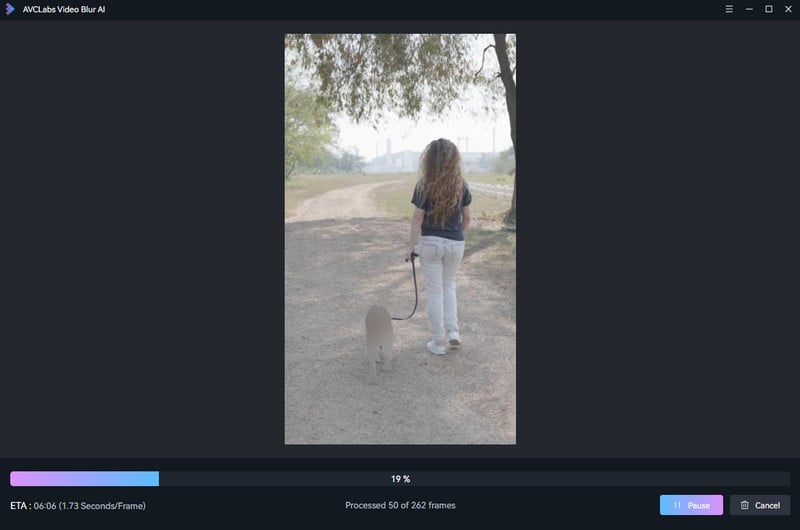
Tutorial: How to Track and Blur Ojects with AVCLabs Video Blur AI
AVCLabs Video Blur AI provides an AI-powered object tracking feature that allows you to select and blur specific objects in a video. By simply marking the target object, the AI automatically analyzes and tracks it throughout the video, applying the blur effect accurately while keeping other areas unchanged.
Import Video
Click the Import Area or drag and drop a video file into it to import your video.
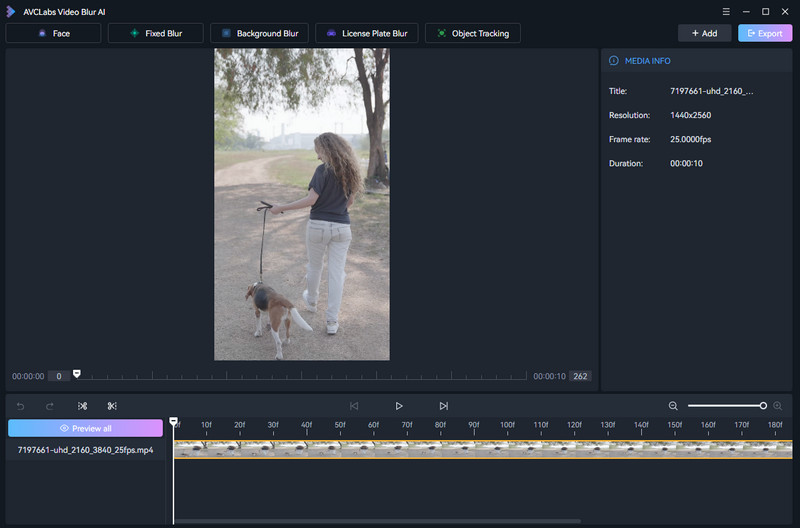
Select Object tracking Feature
At the top of the program, select the Object Tracking feature to start an object tracking task.
You will enter the object selection interface. Click on the object you want to blur, and the AI will automatically identify and create a selection mask for the target object.
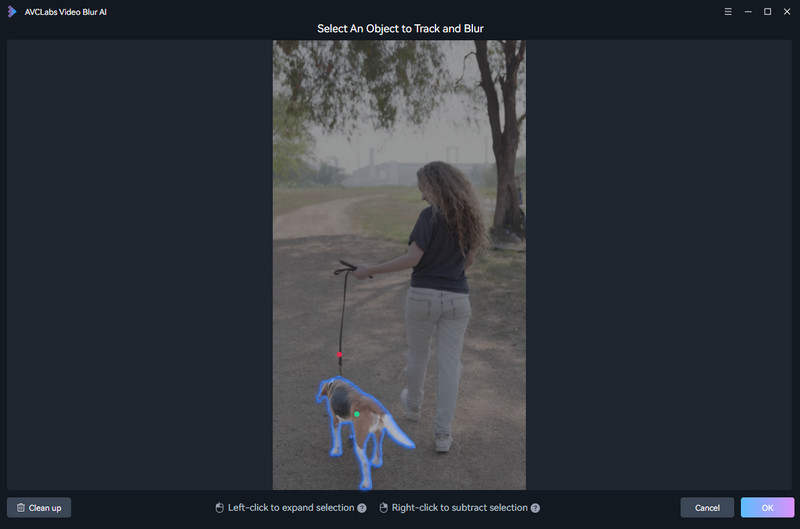
Click Done to finish your selection.
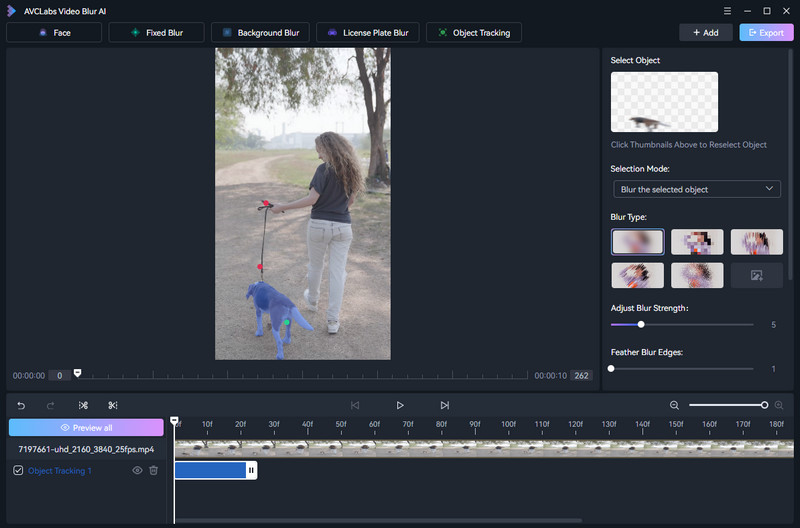
Preview and Adjust Object Tracking Settings
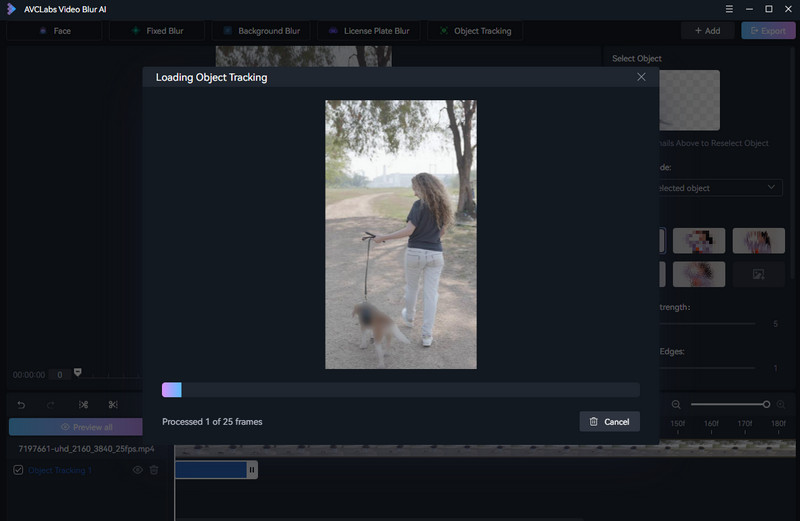
Click Preview All to generate the tracking preview and apply the selected effect.
You can adjust Mask Expand, Edge Feather, and Mask Strength. You can also choose whether to apply the effect to Selected or Not Selected areas, switch between Mask and Erase modes, and select different effect styles.
Export the Video
After confirming the object tracking effect, click the Export button in the top-right corner.