Author: Emma DanUpdated: June 16, 2026Reading time: 12 minutes
Looking for a Topaz Video alternative? Here we compare 12 AI video enhancers by price, PC requirements, speed, and quality for you to choose the best fit.
You have the clip ready — an old home video, a noisy phone recording, or 1080p footage that needs to hold up on a bigger screen. Search for AI video enhancement, and Topaz Video comes up again and again. On upscaling, denoise, and restoration, it deserves that reputation.
But many users hit the same wall in 2026: subscription pricing that starts around $299/year (or $39–$59/month on other plans), hardware demands that rule out an average laptop, and a learning curve built for repeat use — not the occasional clip you want to fix before posting. If that sounds familiar, you are not looking for worse results. You are looking for a better fit.
This guide compares 12 Topaz alternatives by price, PC requirements, ease of use, output quality, and speed.
Part 1: Quick Verdict — Best Topaz Video Alternatives in 2026
If Topaz does not fit your budget or PC, here are the fastest picks:
Best overall Topaz Video alternative:AVCLabs Video Enhancer AI — strong local upscaling, denoise, and face restoration; subscription plans exist, but the $149.90 lifetime license on recent promo costs less than half a year of Topaz.
AVCLabs Video Enhancer AI – Best Topaz Video Alternative
Upscale, denoise, and restore video locally with AI — monthly plans available, or lifetime from $149.90 on recent promo.
Best free or low-friction option:CapCut — free tier handles most short social clips; edit and enhance in one app with almost no learning curve.
Best browser-based option for short clips:TensorPix or Vmake — no install or GPU required; TensorPix for occasional upscaling on weak PCs, Vmake for AI-generated and product footage.
Best all-in-one suite:UniFab — combines upscaling, denoise, HDR, frame interpolation, and conversion in one lifetime toolbox for mixed post-production jobs.
Best budget lifetime pick:Aiarty (~$165 lifetime) for natural 4K upscaling, or VideoProc Converter AI (~$46 lifetime) when you mainly need format conversion plus light AI upscale.
Topaz remains the quality benchmark on the hardest restoration jobs. For most creators and everyday users, one of the alternatives below is the smarter buy.
Part 2: Why You Might Be Looking for a Topaz Video Alternative
Topaz did not lose its reputation overnight. What changed is the buying experience, the hardware bar, and how most people actually use AI enhancement in 2026 — including, perhaps, you.
1. Topaz Video pricing: is it too expensive for you?
For years, many buyers treated Topaz Video as a one-time purchase — pay once, use for years. That path is largely gone for new customers. Topaz Video is subscription-based now, and you can no longer buy it once and forget about the cost.
If you only enhance video occasionally, paying $299 a year upfront — or $39–$59 a month on monthly plans — is hard to swallow. Skip annual prepay and you are looking at roughly $468–$708 per year, especially painful when several AI video enhancers now offer lifetime licenses between $46 and $320.
This is the most common reason you might be reading this guide. You are not always looking for better AI. You want a price that matches how often you actually process video.
2. System requirements: what if your computer cannot handle it?
Topaz Video's official requirements are not casual. You need 16GB RAM minimum, Apple Silicon on modern Macs, and in many cases a dedicated NVIDIA GPU for the most advanced local models. Model storage alone can exceed 45GB.
In practical terms, that means:
Your thin laptop with integrated graphics may install the app but struggle with 4K output
Long clips can take hours rather than minutes on your machine
Batch jobs on laptops often hit thermal limits and slow down unpredictably
If you are on an office laptop, an older desktop, or a PC without a dedicated GPU, a cloud-based Topaz Video alternative is usually the realistic answer — not another local render that never finishes.
3. Is there an easier option than Topaz?
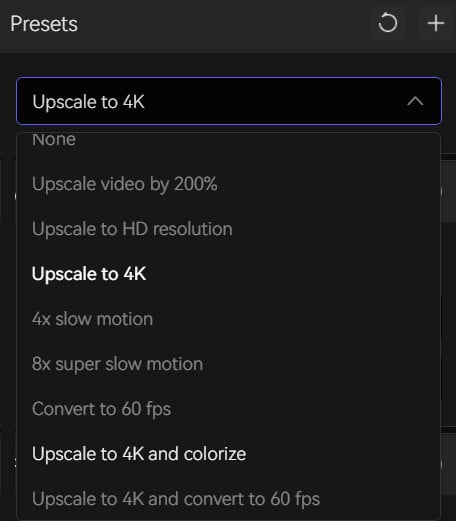
Topaz gives you multiple AI models — Proteus, Iris, Nyx, Starlight, and more — each suited to different problems. That depth is excellent if you restore footage professionally. It is overwhelming if you just want to upscale one vertical video before posting.
Alternatives like AVCLabs Video Enhancer AI, HitPaw, CapCut, and Wink.ai shrink the decision tree: import, choose a preset, export. You may not beat Topaz pixel-for-pixel on badly damaged film scans, but you will finish the job much faster.
4. Is there a free alternative?
This is the question most people get wrong.
Free tools can sharpen soft footage, reduce mild noise, upscale short clips to 1080p or 4K, and improve contrast for social publishing. They usually cannot reliably restore badly damaged analog sources, handle long-form batch restoration, or match Topaz-level detail recovery on extreme low-bitrate files.
Still, for many real-world tasks — a blurry phone clip, a screen recording, an AI-generated video with compression artifacts — a free Topaz Video alternative can be genuinely enough. It just will not replace Topaz on every job you throw at it.
Part 3: 12 Best Topaz Video Alternatives
Below are the 12 Topaz alternatives in this guide, grouped by type. Each entry covers who it is for, what it does well, where it falls short, and how it compares with Topaz in real use.
4 Best AI Video Enhancer Software (Desktop)
1. AVCLabs Video Enhancer AI — Best Overall Topaz Video Alternative
Best for: Home video restoration, face-heavy footage, creators who want strong quality and an affordable lifetime buy
Pricing (2026): About $39.95/month, $95.96/year, or a lifetime license at $149.90 (recent promotional price)
Platform: Windows and macOS, local processing
AVCLabs Video Enhancer AI sits in a practical middle ground. It is not trying to copy every Topaz model name for name. Instead, it focuses on the jobs most people actually need: upscaling, denoising, deblurring, face improvement, stabilization, and colorization for older clips.
The interface is easier to learn than Topaz, but still deep enough for repeat users. You can choose single-frame or multi-frame models. The multi-frame path is especially useful for handheld footage, where motion consistency matters as much as sharpness.
AVCLabs goes further than enhancement alone. The same ecosystem covers object removal and AI-powered blur/masking through AVCLabs Video Blur AI — including faces, license plates, backgrounds, and moving objects that need to stay masked frame to frame. Recently, AVCLabs also released AVCLabs MCP, a media MCP layer that lets AI agents plug into these tools for automated video workflows.
Strong face enhancement without manual model juggling
Multi-frame processing reduces flicker in restored footage
Video stabilization for shaky handheld and action footage
Broader AVCLabs toolkit: object removal, plus AI blur for faces, license plates, backgrounds, and moving subjects
Local processing keeps private media off third-party servers
Lifetime license ($149.90 on promo) undercuts Topaz's annual cost — subscription plans also available
Weaknesses
Not the absolute top tier on severely degraded archival film
Advanced generative reconstruction still favors Topaz on the hardest sources
Heavy 4K or 8K jobs still benefit from a modern GPU and 16GB+ RAM
Testing notes
On a 3-minute 1080p home video with indoor lighting, moderate noise, and centered faces, AVCLabs' multi-frame mode produced stable skin tones and readable background detail without the overly polished look some social presets create. Render time on an RTX 4070-class system was noticeably shorter than a comparable Proteus workflow in Topaz.
Compared with Topaz: Speed — usually faster on common upscaling tasks. Look — more natural on faces; Topaz can recover more micro-detail on very soft sources. Not ideal for: Heavily damaged historical film where generative detail injection is required.
Case study: Upscale an old movie to 4K
Working on old film or SD archives? See our hands-on old movie to 4K case study — a real AVCLabs workflow that upscales a 1940s clip, reduces grain, and improves subtitle clarity, with before/after sample videos you can download and compare.
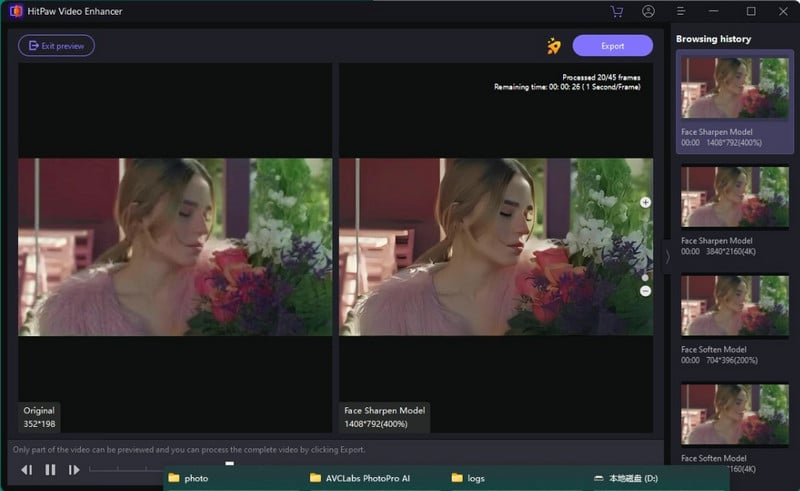
2. HitPaw Video Enhancer (VikPea) — Best for Easy AI Video Enhancement
Best for: Social creators, quick turnaround projects, portrait and animation content
Pricing (2026): Around $42.99/month, $99.99/year, or lifetime near $249
Platform: Windows and macOS
HitPaw, now branded VikPea in some markets, is built around simplicity. Instead of asking which restoration model fits your footage, it pushes you toward practical presets: general enhancement, face optimization, animation enhancement, and similar one-click workflows. That makes it a strong fit for creators who process a few clips a week and want a polished result without learning model names or tuning sliders. The tradeoff is control — you get speed and convenience, but less room to fine-tune grain, sharpening, or artifact handling the way Topaz allows.
Strengths
Very fast path from import to export
Face preset works well for short-form vertical content
Animation preset is useful for cartoon and anime clips
Good when "good enough for Instagram" is the real goal
Weaknesses
Subscription pricing is hard to justify for casual users
Less control over grain, sharpening, and artifact tradeoffs
Fine texture can look over-enhanced at full screen
Testing notes
For a 45-second talking-head clip in soft window light, HitPaw's face mode cleaned up noise quickly and produced a polished social-ready result in minutes. On foliage and fabric, the same preset introduced a slightly crunchy look that AVCLabs and Topaz handled more gracefully.
Compared with Topaz: Faster for preset workflows; sharper and more processed than Topaz on many scenes. Not ideal for: Documentary restoration or large-screen presentation.
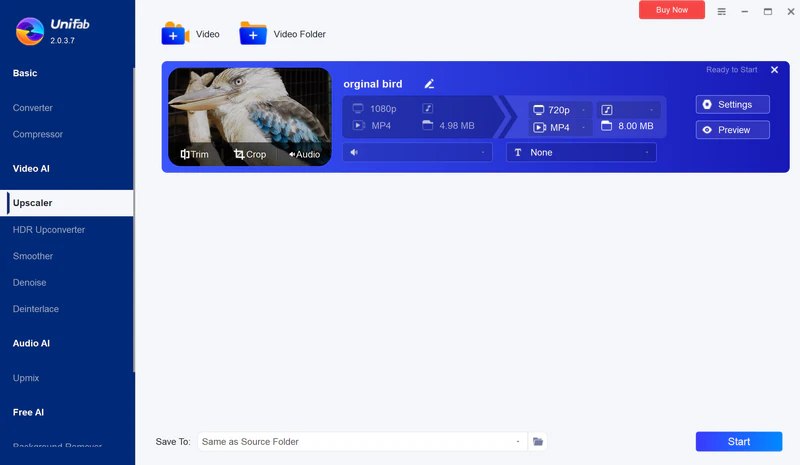
3. UniFab — Best All-in-One AI Video Enhancement Software
Best for: Power users who want upscaling plus denoise, HDR, interpolation, and conversion in one place
Pricing (2026): Individual modules from roughly $89.99–$149.99 lifetime; All-In-One around $319.99 lifetime; cloud options available
Platform: Windows, macOS, plus FabCloud
UniFab is less "one enhancer" and more "a full post-production toolbox built around AI." If your workflow includes upscaling, denoising, deinterlacing, frame interpolation, SDR-to-HDR conversion, and format conversion, UniFab can replace several apps — not just Topaz. Content studios and power users often pick it when a single project needs multiple fixes before delivery, rather than a single upscale pass. FabCloud also gives you a path to GPU-heavy tasks without local hardware, though queue times can vary at peak hours.
Strengths
Broad feature set beyond upscaling alone
Local upscaling up to very high output targets on supported models
FabCloud removes GPU requirements for supported tasks
30-day trial with full feature access and no watermark
Weaknesses
All-In-One pricing is a real commitment
Interface can feel busy if you only need one function
Cloud queue times vary at peak hours
Testing notes
UniFab shines when a project needs more than one fix — for example, interlaced SD footage with noise, faded color, and a 4K delivery requirement. On pure upscaling alone, results are competitive with Topaz on many clips, though Topaz still has an edge on the most damaged sources.
Compared with Topaz: Often faster locally on comparable upscales; very close on general footage. Not ideal for: Minimalists who only upscale occasionally.
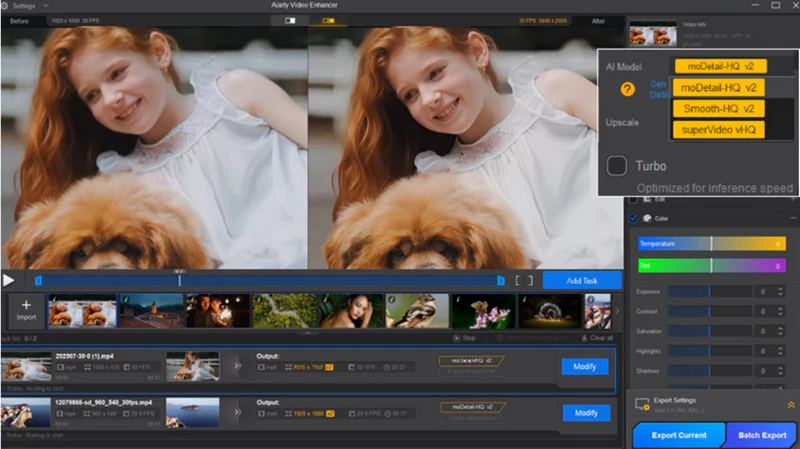
4. Aiarty Video Enhancer — Best Budget AI Video Upscaler
Best for: Budget-conscious users who want lifetime pricing and natural-looking 4K output
Pricing (2026): Around $79/year or $165 lifetime
Platform: Windows and macOS
Aiarty has built its reputation around efficient local processing and texture-aware enhancement. Rather than pushing every clip toward maximum sharpness, its model options let you choose a more detailed look, a smoother natural look, or a stronger recovery mode for noisy or low-light footage. That flexibility suits YouTube creators and personal archivists who want 1080p-to-4K upgrades without an overprocessed look. On modern GPUs it tends to finish faster than Topaz on comparable jobs, though it is not built for 8K mastering or severely damaged archival sources.
Strengths
Excellent lifetime value
Fast processing on modern GPUs
Natural output on skin, hair, and outdoor textures
Simple model selection without Topaz-level complexity
Weaknesses
Output ceiling typically tops out at 4K
Fewer advanced utilities than UniFab or AVCLabs
Less proven for enterprise-scale archival workflows
Testing notes
Aiarty performs best when your source is already "pretty good but not sharp enough" — 720p or 1080p web video, mild-noise DSLR footage, or older YouTube uploads. It is less impressive on extremely low-bitrate disaster files, where Topaz's deeper model stack still recovers more usable detail.
Compared with Topaz: Often faster; more natural by default. Not ideal for: 8K mastering or extreme restoration.
2 All-in-one Video Editors with AI Upscaling Features
5. CapCut — Best Free Topaz Video Alternative for Short Clips
Best for: Short-form creators who want editing and enhancement in one app
Pricing (2026): Free tier available; Pro plans vary by platform, often around $9.99–$19.99/month
Platform: Mobile, desktop, web
CapCut is the practical answer to "I do not want a specialist tool — I want my clip fixed inside my normal editing flow." Its Image Quality tools, noise reduction, stabilization, and flicker controls are not archival-grade, but they are good enough for a huge amount of real content. Because editing and enhancement live in one app, you can trim, caption, add effects, and clean up footage without exporting between tools. That workflow is especially popular for TikTok, Reels, and Shorts — short clips where speed matters more than pixel-level restoration.
Strengths
Extremely low learning curve
Useful for social delivery sizes and quick turnaround
Combines captions, effects, trimming, and enhancement
Free tier is genuinely usable for many short clips
Weaknesses
Not built for long-form restoration
Can smooth away fine detail on already-soft footage
Advanced AI features may require Pro
Testing notes
CapCut is best judged on its intended turf. A 20-second clip with mild blur and phone noise can look noticeably cleaner in a few minutes. A 20-minute SD archive with mixed lighting will expose the limits quickly.
Compared with Topaz: Much faster for short clips; cleaner but less faithful on difficult sources. Not ideal for: Long-form restoration or archival repair.
6. VideoProc Converter AI — Best Low-Cost AI Video Upscaler
Best for: Users who mainly need conversion, compression, and occasional AI upscaling
Pricing (2026): Lifetime license around $45.95
Platform: Windows and macOS
VideoProc is marketed as a converter first — and for many users, that is the point. If your workflow is "download, convert, maybe upscale, upload," paying for a full restoration suite may not make sense. Its AI upscaling sits alongside batch conversion, compression, and format support for drone, GoPro, and screen-capture footage. You get moderate quality improvement at one of the lowest lifetime price points in this guide, but do not expect Topaz-level detail recovery on badly damaged sources.
Strengths
One of the lowest-cost lifetime options
Strong format support and batch conversion
Handles large files from drones, GoPro, and screen recordings well
Lower hardware pressure than Topaz
Weaknesses
Limited AI model depth
Not ideal for face-critical restoration
Enhancement is a supporting feature, not the core identity
Testing notes
VideoProc works well when the source is already decent. Upscaling a clean 720p screen capture to 1080p or 4K for presentation use is a fair test. Trying to rescue a noisy VHS transfer is not.
Compared with Topaz: Often faster in conversion-heavy workflows; moderate improvement, not deep reconstruction. Not ideal for: Face-critical restoration or severely damaged sources.
6 Web-based Video Enhancer Alternative to Topaz
7. VEED — Best Online Video Enhancer for Editing Workflows
Best for: Browser-based editing, color adjustment, subtitles, and social content packaging
Pricing (2026): Free plan available; paid tiers often start around $12/month
Platform: Web browser
VEED is better understood as an online editor with enhancement controls than as a direct Topaz replacement. It is useful when your problem is mostly "this clip needs to look cleaner and more polished," not "this clip is structurally low-resolution and damaged." You can adjust exposure, sharpness, and color, add subtitles, and package content for social — all in the browser without installing software. Teams and solo creators who already edit in VEED will find the enhancement tools convenient, but they are editorial polish, not a dedicated super-resolution engine.
Strengths
Clean browser workflow with no install
Good for quick polish, captions, and social formatting
Useful for teams and lightweight collaboration
Weaknesses
Not a dedicated super-resolution engine in the Topaz sense
Free exports can be limited depending on plan
Long or high-resolution projects get expensive fast
Compared with Topaz: Fast for short editing jobs; editorial polish, not deep AI reconstruction. Not ideal for: Low-resolution or heavily damaged source footage.
8. Canva — Best for Simple Video Quality Improvements
Best for: Design-first workflows where video is one asset among many
Pricing (2026): Free plan available; Pro often around $120/year
Platform: Web and app
Canva is excellent for templates, branding, and simple video adjustments inside a design workflow. It is not a specialist AI video upscaler — and it does not try to be. Marketing teams, small businesses, and non-editors use it when video is one asset in a broader design project: a product launch graphic, a social post, or a presentation with light motion. You can brighten footage, sharpen mildly, and fit video into branded layouts quickly. For serious restoration or 4K upscaling, look elsewhere; for design-led content with a light video touch-up, Canva is often enough.
Strengths
Extremely easy for non-editors
Great when video sits inside broader design production
Useful for marketing teams already using Canva
Weaknesses
No true Topaz-class upscaling pipeline
Limited precision for serious video restoration
Not built for long or technically demanding footage
Compared with Topaz: Fast for simple edits; presentation improvement, not reconstruction. Not ideal for: Serious upscaling or long-form video restoration.
9. Fotor — Best Browser-Based AI Video Enhancer
Best for: Quick online enhancement, low-light cleanup, and simple 4K upscaling attempts
Pricing (2026): Free trial available; paid plans often start under $10/month
Platform: Web browser
Fotor's online video enhancer focuses on sharpening, clarity, noise reduction, and resolution targets such as 1080p, 2K, and 4K — all inside the browser. Upload a clip, pick an enhancement mode, and download the result without installing desktop software. It works best on short, relatively stable footage: product demos, talking heads, and simple outdoor shots. Free and low-tier plans come with length and processing limits, and motion-heavy scenes can show instability — but for quick one-off jobs, Fotor is a low-friction starting point.
Strengths
Simple upload-and-enhance workflow
Useful low-light and clarity improvements on short clips
No software install required
Weaknesses
File length and processing limits on free or low tiers
Motion-heavy scenes can show instability
Uploaded media privacy must be considered
Testing notes
Fotor performs best on short clips with relatively stable motion — product demos, talking heads, simple outdoor shots. Fast action and long-form archives are where desktop tools pull ahead.
Compared with Topaz: Fast for short online jobs; decent social quality; less precise detail recovery. Not ideal for: Long clips, fast action, or archival workflows.
10. TensorPix — Best Online Topaz Video Alternative for Low-End PCs
Best for: Browser-based upscaling with recurring free credits and no local GPU requirement
Pricing (2026): Free credits available on a recurring basis; paid credit packs for heavier use
Platform: Web browser, mobile-friendly
TensorPix is one of the more practical answers to "I need to upscale a clip occasionally, but my laptop cannot handle Topaz." It runs in the browser and is designed so your device does not need to do the heavy lifting. A recurring free-credit model makes it accessible for occasional users who do not want another subscription. Upload your clip, let TensorPix process it on remote GPUs, and download the result — useful for mild softness, compression artifacts, and short AI-generated clips. Long-form or batch work gets expensive fast, and you trade local control for convenience.
Strengths
Works on average laptops and phones
Free credit model helps occasional users
Useful for short clips and AI-generated video cleanup
No local GPU needed
Weaknesses
Upload and download overhead
Not economical for long videos at scale
Less manual control than desktop restoration apps
Testing notes
For a 40-second 720p clip, TensorPix can feel surprisingly capable when the problem is mild softness or compression artifacts. At 10+ minutes, cost, time, and workflow friction usually push users back to desktop software.
Compared with Topaz: Good for moderate cases, not top-tier restoration. Not ideal for: Long videos, batch jobs, or maximum detail recovery.
11. Vmake — Best for AI-Generated Video Enhancement
Best for: AI-generated video cleanup, ecommerce footage, and one-click online enhancement
Pricing (2026): Free tier available; paid plans for heavier usage
Platform: Web browser
Vmake has leaned into the current content landscape. With so much footage now coming from generative video tools, there is rising demand for enhancers that understand AI artifact patterns — not just old camera noise. Its one-click online workflow targets AI-generated clips, ecommerce product shots, portraits, and gaming content where a fast cleanup matters more than archival fidelity. Free tiers handle light use; heavier workflows need paid plans. On natural camera footage with fine texture, desktop tools like AVCLabs or Topaz usually look more believable — but for generative or heavily compressed social output, Vmake can feel impressively clean.
Strengths
Very simple interface
Useful for AI-generated clips, portraits, product shots, and gaming content
No install or GPU requirements
Weaknesses
Advanced modes can look synthetic on real-camera footage
Free usage limits apply
Not ideal for archival restoration purists
Testing notes
Vmake is strong when the source is computationally generated or heavily compressed for social platforms. On natural camera footage with subtle texture, AVCLabs or Topaz usually produce a more believable image.
Compared with Topaz: Fast and frictionless for short online jobs; can look impressively clean on AI-generated content. Not ideal for: Natural camera footage with fine texture or archival restoration.
12. Wink.ai — Best Online Portrait Topaz Video Alternative
Best for: Portrait beautification, personal video cleanup, and quick quality boosts online or via optional mobile and desktop apps
Pricing (2026): Free tier with daily credits; paid plans for heavier use — quality enhancement costs credits (e.g. 4 credits for a sub-60s clip on the lowest HD model)
Platform: Web browser, plus optional iOS, Android, and desktop apps
Wink.ai is a cloud-based online video enhancer built around portrait beautification: skin smoothing, facial refinement, and social-ready polish. Upload and process clips in the browser, or use the optional iOS, Android, and desktop clients — all share a similar interface, with the desktop build leaning harder into portrait tools. Video quality enhancement runs on a credit system, not unlimited local rendering. For a clip under 60 seconds using the lowest HD model, expect around 4 credits per job. That makes Wink.ai practical for short personal clips — birthday footage, selfie videos, dark indoor recordings — whether you work online or through a downloaded app. It is not a post-house restoration suite, but for portrait-heavy, credit-based touch-ups it keeps friction low.
Strengths
Excellent UX online and in optional apps — desktop client adds stronger portrait tools
Strong portrait beautification and old-footage cleanup presets
Video quality enhancement available via credit-based cloud processing
Fast path from import to polished clip for short personal videos
Weaknesses
Credit costs add up on longer or higher-quality jobs (4 credits for a sub-60s clip on the lowest HD model)
Not built for professional batch pipelines
Fine detail on large displays can fall short of dedicated desktop enhancers like Topaz or AVCLabs
Testing notes
Wink.ai is at its best on short personal clips where portrait polish matters — old birthday footage, a blurry selfie video, a dark indoor phone recording. The web workflow and downloaded apps feel consistent; portrait tools sit more front and center on desktop. A sub-60 second clip on the lowest HD quality model consumed 4 credits in our test. It is not the right tool for a post house delivering a 4K documentary master.
Compared with Topaz: Faster and simpler for portrait touch-ups; credit-based, not a local restoration engine. Not ideal for: Professional batch pipelines, long-form restoration, or large-screen delivery.
Part 4: Side-by-Side Comparison Tables of 12 Topaz Video Alternatives
At-a-glance comparison
Tool
Type
Pricing
Local / Cloud
Max output
Free tier
Best use case
AVCLabs Video Enhancer AI
Desktop
$39.95/mo · lifetime ~$149
Local
Up to 8K
Watermark; 30-second output limit
Best overall alternative
HitPaw VikPea
Desktop
~$43/mo · lifetime ~$249
Local
Up to 8K
Watermark output
Face/social presets
UniFab
Desktop + Cloud
Modular · lifetime ~$320 AIO
Both
Up to 16K local
30-day trial; process up to 3 videos
Full enhancement suite
Aiarty Video Enhancer
Desktop
~$79/yr · lifetime ~$165
Local
Up to 4K
7-day trial
Budget lifetime pick
CapCut
Editor
Free · Pro ~$10–20/mo
Mostly cloud
Up to 4K
Yes (Upscaling export needs Pro)
Short-form editing + enhance
VideoProc Converter AI
Converter
~$46 lifetime
Local
Up to 4K
15-day trial
Convert + light upscale
VEED
Online editor
Free / paid
Cloud
Varies
Yes, 720p cap
Browser editing + polish
Canva
Design platform
Free / paid
Cloud
Mostly 1080p
Yes, AI quota
Design-led video touch-up
Fotor
Online enhancer
Free trial
Cloud
Up to 4K
Limited credits
Quick browser upscaling
TensorPix
Online enhancer
Free credits
Cloud
Up to 4K
Yes, watermark
No-GPU occasional upscaling
Vmake
Online enhancer
Free tier
Cloud
Up to 4K+
Yes, 5s cap
AI-gen and product footage
Wink.ai
Online enhancer
Free credits
Cloud
Up to 4K
Yes, daily quota
Portrait beautification & short clips
Quality and workflow comparison vs. Topaz
Tool
Ease of use
Speed vs Topaz
Quality vs Topaz
Best replacement scenario
Topaz Video
Hard
Baseline
Baseline
Maximum restoration quality
AVCLabs
Easy
Faster
Close
Home video, face restoration & lifetime ownership
HitPaw
Easy
Faster
Good for social
Quick preset-based results
UniFab
Medium-hard
Faster
Close
Multi-tool post workflows
Aiarty
Medium
Faster
Close at 4K
Budget lifetime enhancement
CapCut
Very easy
Much faster
Moderate
Edit and enhance in one app
VideoProc
Easy
Faster
Moderate
Conversion-first workflows
VEED
Easy
Fast
Not comparable
Online editing polish
Canva
Very easy
Fast
Not comparable
Design-centric projects
Fotor
Easy
Fast
Moderate
Short browser jobs
TensorPix
Easy
Network-dependent
Moderate
Occasional cloud upscaling
Vmake
Very easy
Fast
Moderate
AI-generated content cleanup
Wink.ai
Very easy
Fast
Moderate
Portrait polish & short personal clips
3-year cost comparison (approximate)
Tool
Year 1
Year 2
Year 3
Notes
Topaz Video
$299–$708
$299–$708
$299–$708
From $299/yr prepaid; $39–$59/mo plans cost $468–$708/yr
AVCLabs lifetime
$149.90
$0
$0
Recent promo; one-time
Aiarty lifetime
$165
$0
$0
One-time
UniFab All-In-One
$319.99
$0
$0
One-time
HitPaw subscription
~$516
~$516
~$516
If kept on monthly plan
CapCut Pro
~$120–$240
~$120–$240
~$120–$240
Depends on plan
VideoProc lifetime
$45.95
$0
$0
One-time
Free online stack
$0
$0
$0
Time and quality tradeoffs
Part 5: Editor's Pick — AVCLabs Video Enhancer AI
If this guide helps you eliminate bad options, it has done part of its job. But most readers want a default recommendation they can test first.
Not because it beats Topaz in every scenario — it does not. Topaz still wins on the hardest restoration problems. AVCLabs wins the decision most people are actually trying to make:
"I want strong quality, reasonable speed, local privacy, and I do not want to keep paying every year." AVCLabs offers monthly and annual plans too, but its lifetime license — $149.90 on recent promo — is where the math really works in your favor.
That combination shows up constantly in real search intent:
Too expensive? AVCLabs lifetime ($149.90 on promo) costs less than half a year of Topaz — no ongoing subscription required if you buy once.
Weak hardware? AVCLabs is more forgiving than Topaz on many workflows, though cloud tools remain the fallback for very weak PCs.
Need simpler? AVCLabs offers multiple presets that beginners can use right away — and still provides finer professional controls when you need them, with a gentler learning curve than Topaz.
Need free? CapCut, TensorPix, and Wink.ai come first; AVCLabs is the paid upgrade when quality matters.
Why AVCLabs over the other strong picks?
Over UniFab: UniFab is better if you need a full suite — HDR, interpolation, audio upmix, conversion, and cloud modules. AVCLabs is the better pick for professional AI video enhancement — upscaling, colorization, deinterlacing, restoration, object removal, and blur/masking.
Over Aiarty: Aiarty suits users who want a lightweight, natural-looking 1080p-to-4K upscaler. AVCLabs costs less on lifetime ($149.90 promo vs ~$165) while offering broader restoration tools, stronger face workflows, and up to 8K output.
Over HitPaw:HitPaw is faster to learn, but its subscription math is harder to defend long term. AVCLabs usually costs less over time and holds up better outside social viewing.
Over CapCut and browser tools: Those are excellent for convenience. AVCLabs is the better recommendation when quality, privacy, and repeat use matter.
Part 6: When to Stay with Topaz — and What Comparisons Miss
It is tempting to frame every alternative as a "Topaz killer." That is not useful — and pixel-level scores rarely tell the whole story.
Who should still stay with Topaz?
Stay with Topaz if you restore severely damaged archival footage professionally, need the deepest model selection, already know Topaz workflows, or have the hardware to support long local renders without frustration.
Topaz is still a top-tier AI video enhancer. The question is whether you need top-tier for your own footage.
Sharp vs. natural: what users feel but rarely measure
Topaz often wins the "zoom in and inspect pixels" test. Alternatives sometimes win the "watch the full clip and it feels right" test.
When comparing tools, always test with your own footage. A benchmark clip from the internet will flatter whichever tool the reviewer already prefers.
Part 7: How to Choose the Right Topaz Video Alternative
Use this decision path to find the right Topaz alternative — instead of chasing the longest feature list.
Step 1: Define the job
Ask one question first: Am I restoring damaged footage, or just making good footage look better for publishing?
Damaged footage → AVCLabs, UniFab, or stay on Topaz
Good enough for social: CapCut, HitPaw, Wink.ai, Vmake
Good enough for YouTube and client web delivery: AVCLabs, Aiarty, UniFab
Best possible on difficult sources: Topaz, then AVCLabs or UniFab
Topaz often produces extremely detailed results; many alternatives aim for a cleaner, less overprocessed look. For social media, slightly sharper output often works better on small screens. For family archives, natural skin tones usually beat aggressive sharpening. For commercial restoration, detail recovery matters more than speed.
Step 5: Run a real test before buying
Do not buy based on marketing screenshots.
Test the same 20–60 second clip in your top paid candidate, your top free candidate, and Topaz if you still have access. Compare faces, motion stability, background texture, processing time, and whether the result looks artificial at full screen. On mid-range hardware, AVCLabs and UniFab often finish 1080p-to-4K jobs faster than Topaz; browser tools feel fast for short clips but scale poorly for long files.
That short test will tell you more than any comparison article — including this one.
Part 8: FAQs About Topaz Video Alternatives
What is the best Topaz Video alternative in 2026?
For most users balancing quality, price, and usability, AVCLabs Video Enhancer AI is the best overall pick. UniFab is the best suite-style alternative. CapCut is the best free or low-friction option.
Is there a free Topaz Video alternative?
Not a full one. CapCut, TensorPix, and Wink.ai are the most practical free starting points for short clips. Expect quality and length limits, and do not rely on them for serious restoration.
Can I still buy Topaz Video with a lifetime license?
New buyers generally need a Topaz Video subscription now. Legacy Topaz Video perpetual licenses still exist for older customers, but that model is not the standard purchase path anymore.
Which alternative is best for a low-end PC?
Choose a cloud-first tool: CapCut, TensorPix, Vmake, Wink.ai, or UniFab FabCloud. These reduce dependence on local GPU performance.
Which alternative is closest to Topaz in quality?
For local processing, AVCLabs and UniFab are usually the closest on common upscaling and denoise tasks. Topaz still has the edge on the hardest restoration cases.
Are online video enhancers safe for private footage?
That depends on sensitivity. If the content is personal, confidential, or client-owned, local desktop tools like AVCLabs, Aiarty, and UniFab are safer default choices because files stay on your machine.
Is HitPaw better than AVCLabs?
HitPaw is easier for beginners and can be faster for simple preset jobs. AVCLabs is generally the better long-term choice if you care about total cost, stronger restoration features, and more natural results outside social presets.
Can CapCut replace Topaz?
For many short-form creators, yes — in the sense that CapCut may be all they need. For deep upscaling, archival repair, and high-end detail recovery, no.
Do I need Topaz if I buy UniFab or AVCLabs?
Many users will not. But professional restoration workflows sometimes keep Topaz for the hardest files while using a cheaper alternative for everything else. That hybrid approach is more common than people admit.
Final Thoughts
Searching for the best Topaz alternative is usually not about finding a tool with more features. It is about finding the tool that matches your budget, your computer, your patience, and the kind of footage you actually have.
Choose CapCut, TensorPix, or Wink.ai if free and simple matter most
Choose UniFab if your workflow needs more than upscaling alone
Stay with Topaz Video if maximum restoration quality is worth the subscription and hardware requirements
Run your own clip through a trial before committing. The right alternative is the one that makes your footage look better where you plan to watch it — phone screen, YouTube, client review, or big-screen playback.
Try AVCLabs Video Enhancer AI today — lifetime from $149.90 on recent promo, or monthly plans if you want to test first.
AVCLabs Video Enhancer AI – Best Topaz Video Alternative
Upscale, denoise, and restore video locally with AI — monthly plans available, or lifetime from $149.90 on recent promo.
She is a video post-production specialist and AI tool reviewer who has helped thousands of creators streamline their editing workflows through practical, no-fluff tutorials. Her work focuses on comparing AI video tools and breaking down real editing workflows for creators.
This article introduces the 3 best 8K video players for PC in 2026, including their unique features as well as pros and cons, and an 8K Video Quality Enhancer.
If you have any questions while using our AI tools or want to suggest a new feature, we’d love to hear from you. Let's make AVCLabs even better — together.










 Eve Williams
 May 13, 2026