How to Fix Shaky Video [3 Methods]
 Posted By: Sherry Johnson
- Category: Video Enhancer Tips
- Updated On: May 25, 2026
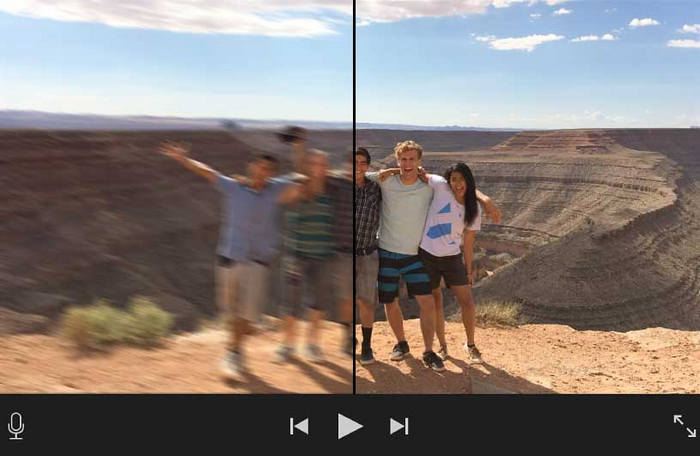
When you're recording a video, sometimes shakiness is sometimes unavoidable. Especially if you're zooming in to get a shot, camera shake is inevitable, even with a steady camera. So that's why we seek for the help from video stabilization software. Luckily there are some really powerful tools enable you to get exactly the look and feel you want. Here's how to use these tools to fix a shaky video and stabilize shaky videos easily.
Quick Navigation: Easiest Ways to Stabilize Shaky Video
| Tool | Ease of Use | Learning Curve | Key Features | Best For |
|---|---|---|---|---|
| AVCLabs Video Enhancer AI | 🌟🌟🌟🌟🌟 | Zero (1-click operation) | AI stabilization + 8K upscaling + local processing | Beginners, privacy-focused users |
| Adobe Premiere Pro | 🌟🌟🌟 | High (needs editing skills) | Precise control + professional effects | Video editors, filmmakers |
| iMovie | 🌟🌟🌟🌟 | Low | Free, Mac-only | Casual Mac users, quick edits |
1. How to Stabilize Shaky Clips with AI (Easiest Method)
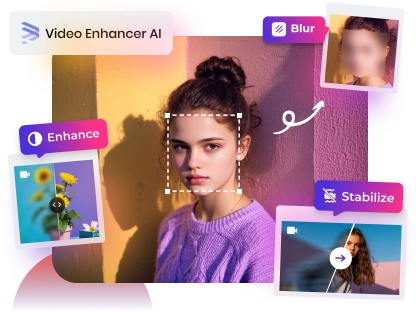
Equipped with a dedicated stabilization model, AVCLabs Video Enhancer AI automatically analyzes camera motion, reduces unwanted shakes, and outputs smoother videos without cropping important content. Moreover, AVCLabs Video Enhancer AI recovers the video's details and fixes different issues one by one. It automatically identifies and fixes shakiness, brightness, and blurriness to produce a higher resolution unit (up to 8K).
The operation is 100% beginner-friendly, requiring zero manual editing skills. It supports both Windows and Mac systems, so you can pick the version that fits your device.
Key Features of AVCLabs Video Enhancer AI
- Losslessly upscale SD/HD/4K videos to 8K with AI super-resolution
- Remove noise and grain from 8K videos for a cleaner image
- Colorize black-and-white videos to bring them to life.
- Automatically blur unwanted video parts to protect privacy.
- Eliminate camera shake and stabilize 8K videos

Guide: How to Fix Shaky Video Easily with AVCLabs Video Enhancer AI
Step 1 Upload Video
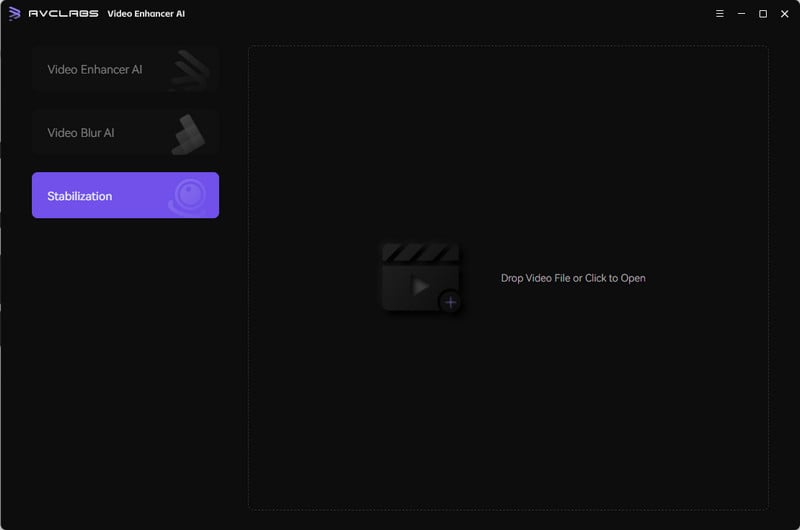
Run AVCLabs Video Enhancer AI on your PC and select Stabilization Model. Then import your shaky video by dragging and dropping, or clicking the tool area on the right to browse local files.
Step 2 Choose Output Settings
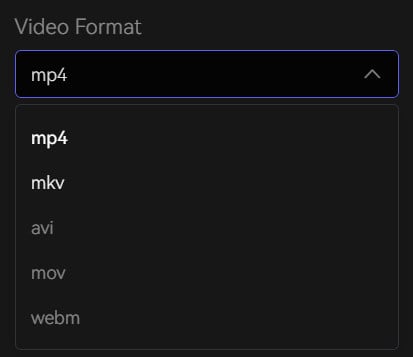
You can select the output settings of the video, including video format, video encoder, video bitrate, audio settings, and output path.
Step 3 Fix Shaky Video at One Click
Click "Preview" to view the stabilization result. Click "Export" to stabilize and render the video. Once the process is complete, import the video back into AVCLabs, switch to the Enhancer section, and enhance the video quality.
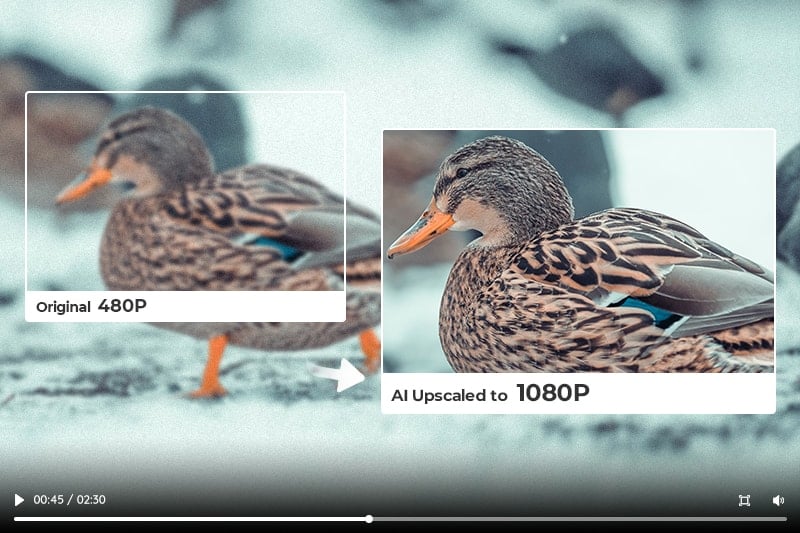
"How to upscale video from 480P to 1080P? AVCLabs Video Enhancer AI can help you convert videos from 480P to 1080P instantly with a single click. Learn more > >
2. How to Stabilize Shaky Videos with Adobe Premiere Pro
Adobe Premiere Pro is a really powerful tool — its Warp Stabilizer effect smooths out unwanted camera shake in just a few clicks. Just follow the steps:
Step 1 Open your vide medial in Adobe Premiere Pro
Select File > Import from Media Browser. Right-click the file in the Media Browser and select Import. Drag the file from the Media Browser into the Project panel, or drag the file from the Media Browser into a timeline.
Step 2 Split your clip into the smallest working area
Identify the shaky portion of the footage and then split the clip to isolate those shaky parts. Then, run Warp Stabilizer only on those shortened clips.
To split clips, move the playhead to the points in the tracks where you want to make a split. Make sure the channels you want to split are highlighted. If you want to split the audio with the video, make sure the audio track is highlighted too. Splitting and moving the video without the audio may cause your audio to go out of sync elsewhere.
Step 3 Apply the Warp Stabilizer to the shaky clip
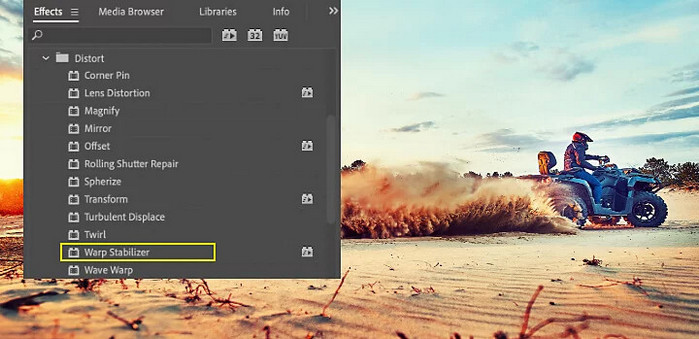
First, select the clip you want to stabilize. Then, in the Effects panel, choose Distort › Warp Stabilizer. Next, apply the effect by double-clicking or by dragging the effect to the clip in the Timeline or the Effect Controls panel.
When analysis is complete, the second banner moves along to show that stabilization is happening. You are free to work with the footage or elsewhere in the project while these steps are occurring.
Step 4 Adjust the stabilization for the look you want
Once the Stabilizer has finished working, you can examine your work and make adjustments to ensure the video features everything you need to see in the shot.
3. How to Stabilize Shaky Clips in iMovie on Mac
If you are using a Mac computer, you can stabilize shaky video in iMovie so that it plays back more smoothly.
- In the iMovie app on your Mac, select an individual clip in the timeline that you want to stabilize.
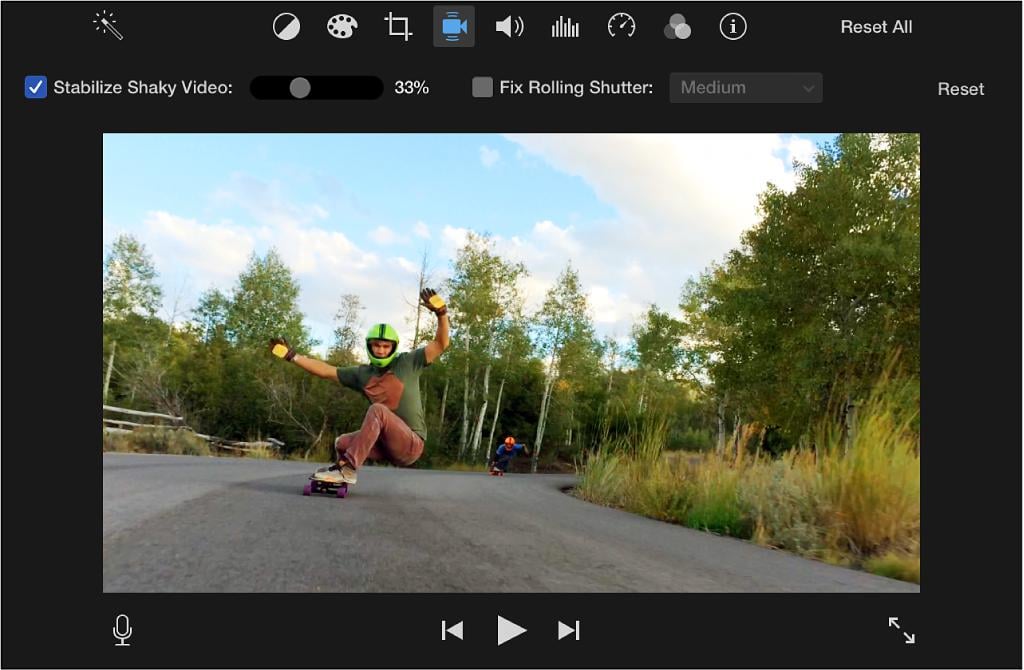
- In the adjustments bar, click the Stabilization button.
- Select the Stabilize Shaky Video checkbox. The checkbox is replaced by an activity indicator until the clip has been analyzed and stabilized.
- To adjust the amount of stabilization applied to the clip, drag the Stabilize Shaky Video slider. To see the effects of stabilization, play the clip.

4. FAQ About Video Stabilization
Can AI fix shaky videos?
Yes, AI tools like AVCLabs Video Enhancer AI can effectively fix shaky videos—often better than traditional tools—by using deep learning to analyze motion patterns, track camera trajectories, and stabilize footage without excessive cropping or warping.
What's the best free program for video stabilization?
There aren't really any completely free video stabilization programs. However, there are many online tools that can stabilize shaky videos at no cost. Try AVCLabs Online Free Video Stabilizer — it lets you fix any shaky video for free. Simply upload your video and start stabilizing.
👉️ Recommend: Free to Upscale SD Video to HD, 4K, and 8K
Conclusion
The above are some of the best video stabilizer software that you can use to remove shakes from your footage and provide basic steps on how to do so. I hope this helps to fix the shaky video and stabilize the shaky video. Comparing Photoshop Premiere Pro, iMovie, and AVCLabs Video Enhancer AI, the AI tool is the easiest one and you don't need to learn or know more skills. It is recommended strongly and just try it.