



3 Best SDR to HDR Converters in 2026: AI, Professional, and Free Solutions
This guide will introduce three SDR to HDR conversion tools - AVCLabs Video Enhancer AI, which is suitable for one-click AI conversion, DaVinci Resolve, which is used for professional HDR color grading, and the free tool FFmpeg, which supports scripted batch processing.
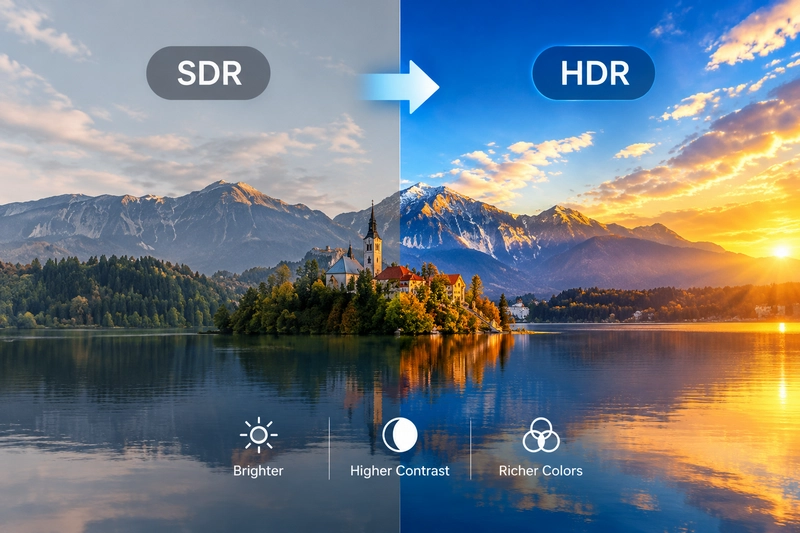
Currently, HDR display technology has been widely adopted in televisions, monitors, smartphones, and various streaming platforms. However, when watching SDR content on modern devices that support HDR, the colors often appear less vibrant and the visual impact is relatively weak.
This guide will introduce you to 3 excellent solutions: AVCLabs Video Enhancer AI, DaVinci Resolve, and FFmpeg. You will learn which tool is the most suitable for your workflow and how to convert SDR to HDR.
Quick Comparison: Best SDR to HDR Converters
| Tool | Best For | Conversion Method | Price | Ease of Use |
|---|---|---|---|---|
| AVCLabs Video Enhancer AI | Beginners who want a quick one-click SDR-to-HDR conversion | AI-powered conversion | Paid; free trial with watermark | ⭐⭐⭐⭐⭐ |
| DaVinci Resolve | Users who want precise control over HDR color grading | Color management and manual grading | Free version available; paid Studio version | ⭐⭐⭐ |
| FFmpeg | Advanced users who want a free customizable, automated workflow | Filters and inverse tone mapping | Free | ⭐⭐ |
🔥 Read More: 8 Best HDR Video Download Sites (4K HDR, HDR10 & Dolby Vision)
Convert SDR to HDR with AI — AVCLabs Video Enhancer AI
AVCLabs Video Enhancer AI is a great option for beginners who want to convert SDR HDR without dealing with complex color-grading workflows. Its AI-powered SDR-to-HDR feature automatically analyzes video content and expands the dynamic range with a single click, making it easier to enhance brightness, contrast, and visual details.
The AI analyzes the brightness and contrast of each scene to estimate how highlights and shadows should be adjusted for a more HDR-like appearance. The results depend on the quality and content of the original footage.
Pros
- Supports batch SDR-to-HDR conversion for multiple videos
- Delivers a visual experience closer to native HDR, revealing richer detail in both highlights and shadows
- Includes a suite of AI tools for noise reduction, facial enhancement, and frame interpolation
- Intuitive user interface with real-time video preview
Cons
- AI video processing has hardware requirements for computer configurations
- The manual control capability for SDR-to-HDR conversion is limited
- Paid software, offering a free trial but with watermarks
How to Convert SDR to HDR with AVCLabs Video Enhancer AI?
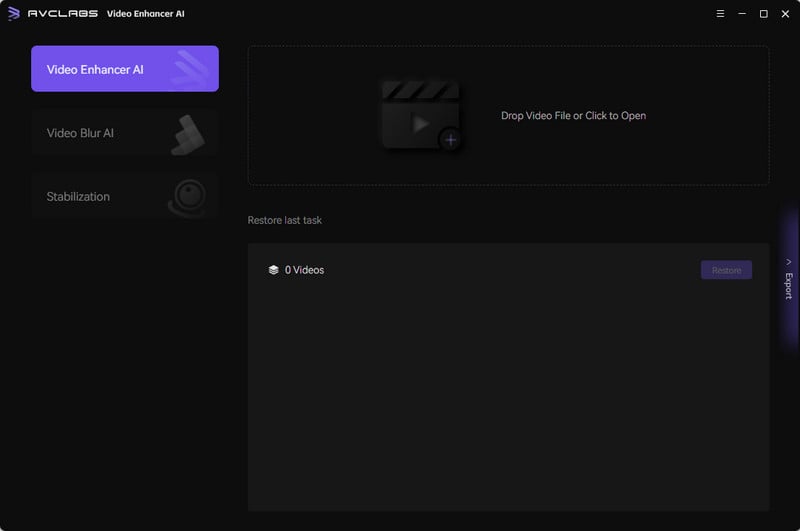
Step 1: Add your SDR video
Open AVCLabs Video Enhancer AI and import your source video. You can add multiple videos if you want to convert them together.
Step 2: Enable SDR to HDR Feature
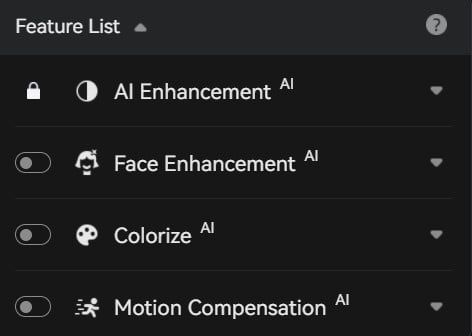
Enable SDR to HDR function in the AI feature list. AVCLabs Video Enhancer AI will automatically process the SDR footage to enhance its dynamic range, brightness, contrast, and visual details.
Additionally, you can enable other AI features according to your specific needs.
Step 3: Preview the Result
Click the Preview icon to check the HDR video and compare it with the SDR footage.
Note: For the most accurate evaluation of HDR brightness and color, use an HDR-compatible display with HDR enabled in your system settings. If you're using a standard SDR monitor, you can still preview the video, but the full HDR effect may not be visible.
Step 4: Export the HDR Video
Select an output folder and click "Export" to begin converting.
Convert SDR to HDR with Professional Color Grading — DaVinci Resolve
DaVinci Resolve is an excellent choice if you want to manually convert SDR content to HDR-standard format. It offers users advanced color grading tools and color management systems, allowing them to manually expand the dynamic range, adjust highlights and shadows, and map SDR content to the HDR color space.
Free version user can perform basic inverse tone mapping using HDR color grading tools such as the CST node and HDR color grading panel. The paid version of DaVinci Resolve Studio unlocks more professional features, including support for Dolby Vision and HDR10+ workflows, as well as broader format and encoding compatibility.
Pros
- Professional-level HDR color grading tool, capable of independently adjusting highlights, shadows, contrast and saturation
- Dedicated HDR panels for precise adjustments within specific luminance ranges (e.g., 600 nits, 1000 nits, or 4000 nits)
- Support the export of HDR10, HLG, as well as 10-bit/12-bit encoding formats
Cons
- The learning curve is steep, and it is necessary to understand related knowledge and parameters such as HDR
- To achieve the best results, manual fine-tuning is usually necessary and it is quite time-consuming
- Certain HDR color grading tools are unavailable in the free version
How to Convert SDR to HDR in DaVinci Resolve?
Step 1: Import Your SDR Video
Launch DaVinci Resolve, import the SDR material into a new project and place it on the timeline.
Step 2: Configure Color Management
Open Project Settings and navigate to the Color Management tab.
Set Color Science to DaVinci YRGB Color Managed, set Timeline Color Space to Rec.2020, and set Timeline Gamma to either ST.2084 (PQ) or Rec.2100 HLG, depending on your delivery requirements.
Step 3: Grade the Video Using HDR Tools
Go to the Color page and use HDR Wheels, Primary Color Wheels, Contrast and Saturation controls, and Highlight and Shadow adjustments. These tools allow you to expand dynamic range and improve color reproduction for HDR displays.
Step 4: Review and Export
Check the footage on an HDR-capable display if possible. In the Deliver page, select an appropriate codec and configure the output color space and transfer characteristics to match your HDR workflow.
Convert SDR to HDR for Free with FFmpeg
FFmpeg is one of the most powerful free and open-source SDR to HDR converters available at present. It does not rely on fixed presets but allows users to combine various filters and encoding options to complete the entire SDR to HDR conversion process.
Its rich filter library includes zscale for color space and bit depth conversion, as well as libplacebo for advanced tone mapping) and dynamic range expansion. The high flexibility of FFmpeg makes it the preferred solution for high-level users who need to fully master the conversion details.
Pros
- Free and open-source SDR to HDR converter with no export limits
- No high-performance GPU or software required
- Flexible HDR conversion settings to suit different workflows
- Use command-line scripts to batch process multiple videos consistently
Cons
- Not beginner-friendly; requires familiarity with the command line interface and video parameters
- Cannot restore the missing true HDR information from the source video
- If the parameters are incorrect, the resulting HDR video may appear greyish or overexposed
How to Convert SDR to HDR with FFmpeg?
Step 1: Install FFmpeg
Download FFmpeg from the official website and install the version that includes the libplacebo filter and libx265 encoder. You can run the following command in the terminal to check if the filter is available: ffmpeg -filters.
Search for "libplacebo" in the filter list.
Step 2: Prepare Your SDR Video
Make sure your source video uses a standard SDR color space, such as:
- Rec.709
- BT.1886
- SDR 8-bit footage
Step 3: Convert SDR to HDR
Copy and run the following professional-level commands.
ffmpeg -i input.mp4 \ -vf "libplacebo=colorspace=bt2020nc:color_primaries=bt2020:color_trc=smpte2084:inverse_tonemapping=true" \ -c:v libx265 -pix_fmt yuv420p10le \ -color_primaries bt2020 \ -color_trc smpte2084 \ -colorspace bt2020nc \ -c:a copy output_hdr.mp4
Step 4: Verify and evaluate the HDR output
Inspect output_hdr.mp4 with ffprobe to confirm its color primaries, transfer characteristics, pixel format, and bit depth. Then play it on an HDR-compatible display with HDR enabled to evaluate the brightness and color rendering.
FAQ About SDR to HDR
Does converting SDR to HDR improve video quality?
SDR to HDR conversion can enhance brightness, contrast and color capacity, enabling videos to present a more vivid effect on HDR display devices and improving the viewing experience. However, it should be noted that currently there is no way to fully capture the HDR highlights and shadows that were not captured in the original SDR footage.
Are there any free SDR-to-HDR converters?
Yes. FFmpeg is a free and open-source tool that supports filters such as zscale, tonemap and libplacebo to achieve inverse tone mapping. DaVinci Resolve also offers a free version, which includes professional color grading tools. However, to achieve HDR effects, manual adjustments are required.
Final Thoughts
If you are looking for a simple SDR to HDR workflow driven by AI, you might want to consider AVCLabs Video Enhancer AI. DaVinci Resolve is more suitable for users who prefer to manually fine-tune the color, while for those who are familiar with filters and command-line operations, FFmpeg offers greater flexibility.

Transform SDR videos into HDR with AI-powered enhancement. Improve perceived brightness, contrast, and color with a simple workflow—no complex manual color grading required.

Emma Dan
She is a video post-production specialist and AI tool reviewer who has helped thousands of creators streamline their editing workflows through practical, no-fluff tutorials. Her work focuses on comparing AI video tools and breaking down real editing workflows for creators.


 Eve Williams
 May 13, 2026