




2026 Step-by-Step Guide: How to Remove Subtitles from A Video
Learn how to remove subtitles from a video with FFmpeg and AVCLabs Video Blur AI. Follow this step-by-step guide to remove soft and hardcoded subtitles easily.
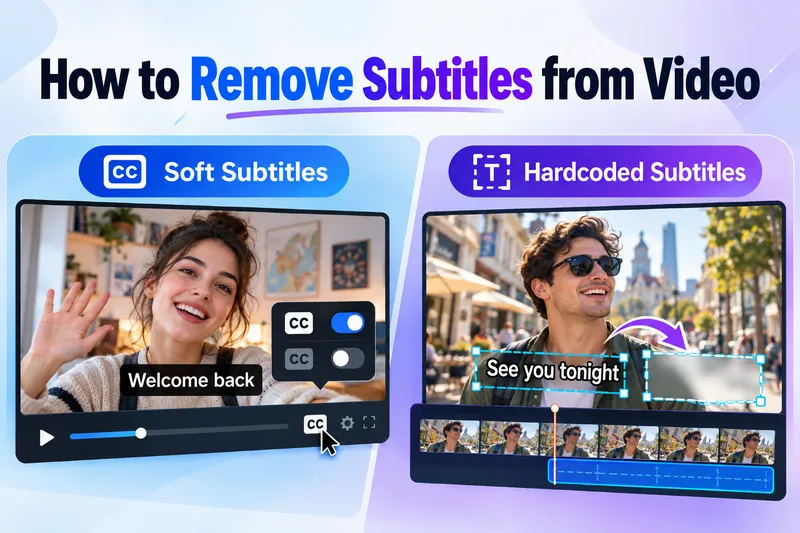
Would you like to remove unwanted subtitles from a video without compromising the original video quality? The specific method depends on the type of subtitles.
This guide will show you how to identify different types of subtitles and walk you through the process of removing them. You will learn how to use FFmpeg to remove soft subtitle, and how to use AVCLabs Video Blur AI to erase hardcoded subtitles without cropping the frame.
Before You Remove Subtitles: Identify Their Type
Before choosing the tool, please first check how the subtitles are attached to the video. Hard-coded (embedded within the video frame) subtitles require processing using AI pixel restoration technology, while soft subtitles or external subtitles do not require re-encoding and can be removed within a few seconds.
| Subtitle Type | How to Identify It | Recommended Solution |
|---|---|---|
| External Subtitles | Subtitles are stored in separate files, such as SRT, ASS, or VTT, alongside the video. | Move or rename the subtitle file, or disable subtitles in your player. |
| Soft Subtitles (Embedded Subtitle Tracks) | Subtitles are stored as independent tracks within the video container and can usually be enabled or disabled in the player. | Use FFmpeg to remove the subtitle tracks. |
| Hardcoded Subtitles | Subtitles are permanently embedded in the video frames and cannot be turned off in media players. | Use AVCLabs Video Blur AI to erase the subtitles. |
🔥 Read More: 10 Best AI Video Watermark Removers in 2026 (Tested & Reviewed)
How to Remove Soft Subtitles with FFmpeg?
Soft subtitles are usually stored in an independent subtitle track rather than being permanently embedded in the video frame. This means you can remove the subtitle track without affecting the quality of the original audio and video, and there is no need to use complex AI subtitle remover.
FFmpeg is a powerful, free and open-source command-line tool that can remove subtitle from a video with just one command. What's even better is that it processes in a way that does not require re-encoding, so its processing speed is usually much faster than re-rendering the entire video, and it does not cause any additional quality loss to the original audio and video.
How to Remove Soft Subtitles from Video?
Step 1: Install FFmpeg
Download and install FFmpeg from the official website. Open "Command Prompt" in Windows or "Terminal" in macOS.
Step 2: Remove Soft Subtitles from a Video
Navigate to the folder containing your video file, or specify the complete file path in the FFmpeg command. Run the following command:
ffmpeg -i input.mp4 -map 0 -sn -c copy output_no_subs.mp4
- -i input.mp4: Specifies your input video file.
- -map 0: Selects all streams from the input file (ensuring no audio channels or metadata are left behind).
- -sn: Remove all subtitle streams in the output.
- -c copy copies the video and audio streams without re-encoding, ensuring no quality loss.
- output_no_subs.mp4: The name of your new, subtitle-free file.
Step 3: Verify the Output Video
Open the exported video using media players like VLC and check if the subtitle track has been removed. If the subtitles are no longer selectable, it indicates that the removal was successful.
How to Remove Hardcoded Subtitles with AVCLabs Video Blur AI?
Removing hardcoded subtitles is significantly more difficult than deleting a separate subtitle file, as the text is permanently integrated into the video frames. Cropping the video to remove them compromises the original composition, while applying blur effects often results in a distracting appearance.
To solve this problem, you need a professional video subtitle remover that can truly reconstruct the background. AVCLabs Video Blur AI is a powerful AI subtitle remover specifically designed for this purpose.
It not only covers the text simply, but also uses its deep learning model to analyze the surrounding pixels and, through intelligent AI restoration technology, to fill in the erased areas. Whether it's static or dynamic subtitles, using AVCLabs Video Blur AI can maintain the video quality while ensuring the integrity of the original visual content.
How to Remove Hardcoded Subtitles from Video?
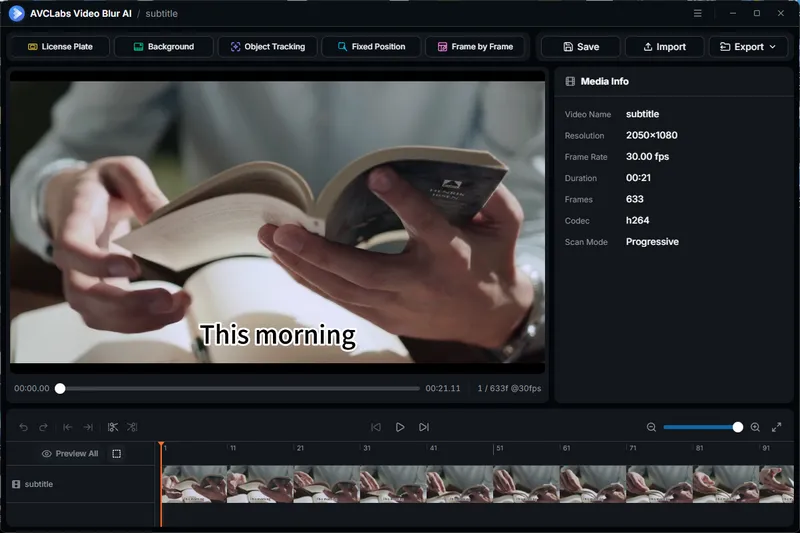
Step 1: Import Your Video
Open AVCLabs Video Blur AI and click the media workspace to browse for your video file. You can also drag and drop the video directly into the workspace for faster importing.
Step 2: Select Fixed Position Feature
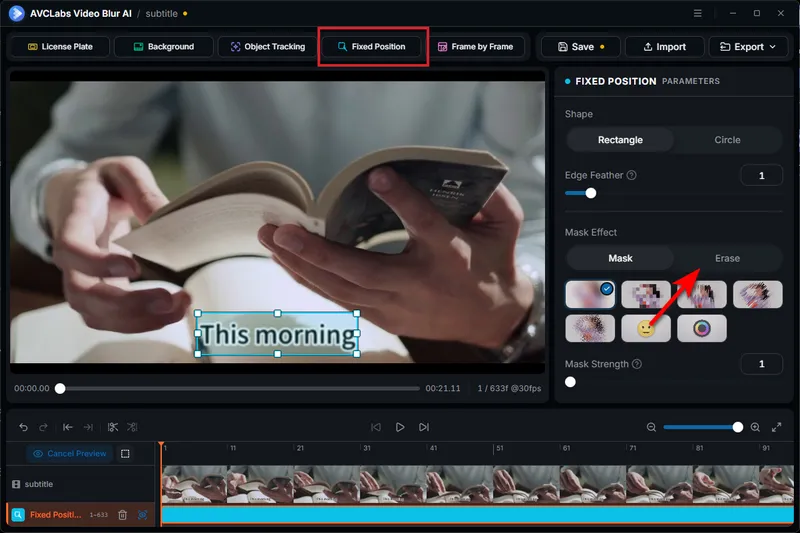
Click "Fixed Position" in the top function menu. This feature is perfectly suited for static subtitles that remain in the same location throughout a scene.
Adjust the size and position of the selection area so that it covers the entire subtitle region.
Step 3: Switch to Erase Mode
In the Mask Effect, switch the mode from Mask to Erase.
AVCLabs Video Blur AI employs an AI-based content reconstruction technology to remove subtitles and seamlessly blend the affected area with the background. You can also achieve the best removal effect by adjusting the value of the Erase Range.
The removal effect depends on various factors, such as background texture, motion of the scene, and the number of details obscured by the subtitles. Compared to scenes with moving objects or complex textures, simpler backgrounds are usually easier to restore.
Step 4: Preview and Export the Video
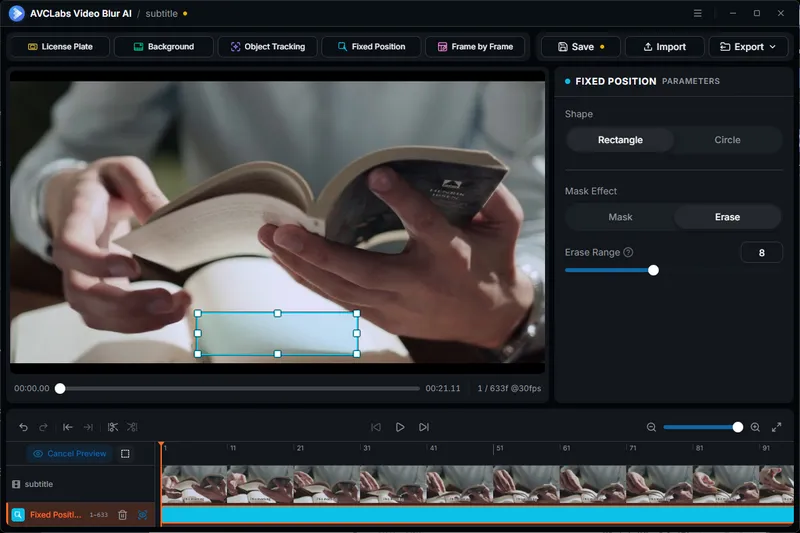
The AI subtitle remover will directly display the effect after the subtitles have been removed. Check the subtitle removal effect frame by frame, and confirm that the background is natural and the subtitles have been completely removed.
Then click "Export" to save the processed video.
Try AVCLabs Video Subtitle Remover, an online AI tool that provides free credits you can use to remove unwanted subtitles from videos directly in your browser.
Try It FreeFAQ About Remove Subtitles from Video
What is the easiest way to remove subtitles from a video?
The simplest method depends on the type of subtitles. If it's soft subtitles and you just want to hide them, simply turn them off in the player. If you want to completely remove them, you can use FFmpeg to delete the subtitle track without re-encoding the video. For hardcoded subtitles that have been permanently embedded in the video frame, you can use AI tools like AVCLabs Video Blur AI. It allows you to select and remove the subtitle area without having to manually edit frame by frame.
Will removing subtitles reduce video quality?
When using FFmpeg to remove soft subtitles, since no re-encoding is required, there will be no quality loss. When removing hard subtitles using AVCLabs Video Blur AI, it employs AI-powered inpainting technology to intelligently reconstruct the background in the subtitle area, thereby avoiding any loss of video quality across the entire frame.
I removed the subtitle track with FFmpeg, but captions still appear. Why?
Your video may contain closed-caption data (such as the CEA-608 or CEA-708 standards), which is embedded within the video stream rather than existing as a separate subtitle track. In such cases, simply removing the subtitle track using FFmpeg may not be sufficient. You may need to follow a specific processing workflow tailored to the particular video format in order to completely remove this subtitle data.
Final Thoughts
Once you have identified the type of subtitles, removing them from a video is actually not that complicated. Please choose the appropriate method based on your specific requirements: use FFmpeg for soft subtitle tracks, and use AVCLabs Video Blur AI for hardcoded subtitles. Choosing the right tool will not only give you a cleaner video but also preserve the original footage as much as possible.

Remove hardcoded subtitles with AI-powered erasing. No cropping or complex frame-by-frame editing required.

Emma Dan
She is a video post-production specialist and AI tool reviewer who has helped thousands of creators streamline their editing workflows through practical, no-fluff tutorials. Her work focuses on comparing AI video tools and breaking down real editing workflows for creators.



 Eve Williams
 May 13, 2026