You finally found the perfect video clip—great lighting, smooth motion, exactly what you needed. But right there in the corner is a giant watermark. We have all been there.
Watermarks are a headache for creators. They ruin the viewing experience, get in the way of repurposing content for social media, and make educational or business videos look unprofessional. Sure, you could try the old-school methods. But manually blurring a logo in Premiere Pro takes forever. And simple crop or masking tricks usually destroy your video quality.
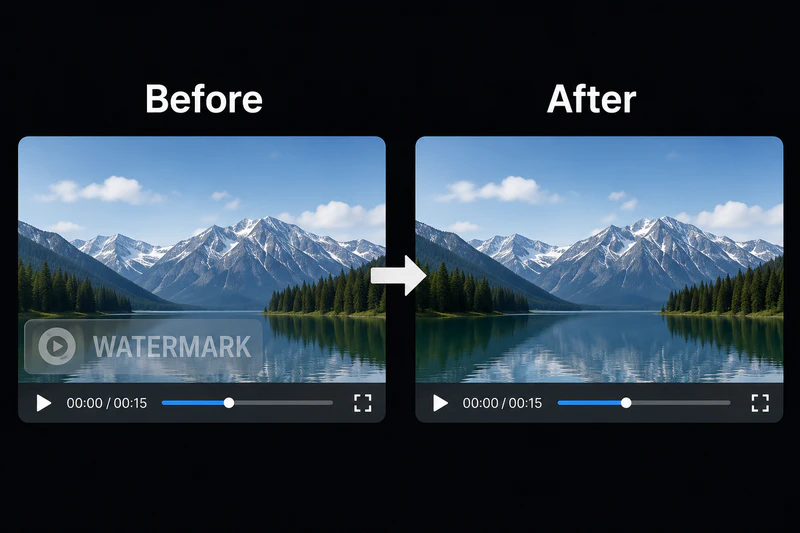
AI video watermark remover tools have become essential in 2026. Whether you need to remove watermark from MP4 video, clean up YouTube clips, or process personal footage, the technology today is faster and smarter than ever. Unlike traditional editing, AI automatically detects the logo, removes it cleanly, and reconstructs the background behind it. Let’s look at the 10 best options available right now.
To save you time, here is a quick recommendation to help you decide immediately:
🎯 Choose Your Perfect Tool Now
Editorial tip: For users who want high-quality AI-assisted watermark removal without the subscription fatigue, AVCLabs Video Blur AI remains our most recommended choice for 2026.
What You Should Expect from a Watermark Removal Tool
Most users want three things when looking for a video watermark removal software: speed, quality, and ease of use. But before we dive into the list, it helps to know exactly what separates a good tool from a great one.
Here are the core features you should prioritize:
- Clean Removal (Static & Moving Logos): The tool must handle corner logos AND moving watermarks.
- Original Video Quality: No pixelation, no weird blurry boxes where the logo used to be.
- Format Support: MP4, MOV, AVI—your software shouldn't force you to convert files first.
- Batch Processing: If you have many videos, doing them one by one is a dealbreaker.
- Simple Workflow: You shouldn't need a degree in film editing to erase a logo.
How AI Removes Video Watermarks: The Tech Behind It
How does software actually "guess" what is behind a logo? In 2026, most tools use three specific techniques. Understanding these helps you choose the right one.
Blur-based Removal is the oldest method. The software just smudges the area. It is fast, but it looks cheap and unprofessional.
AI Reconstruction (Inpainting) is the gold standard today. The AI analyzes the pixels surrounding the watermark and predicts what should be there. Advanced tools utilize Generative AI to rebuild complex backgrounds—like moving water or textured walls—while ensuring the video doesn't suffer from flicker (those annoying flashes that happen when the edit isn't smooth across frames).
Tracking-based Removal is essential for moving logos. The AI attaches an invisible "anchor" to the logo so that if the camera shakes or the logo moves, the removal follows it perfectly.
Most desktop tools, like AVCLabs Video Blur AI, actually combine tracking with AI inpainting for the best results.
3 Categories of Watermark Removers: Which Is Best for You?
We aren't doing a simple "Top 10" ranking here. The best tool depends entirely on your situation. We have broken these down into four categories so you can find your fit immediately.
- Dedicated AI Desktop Watermark Removal Tools : The sweet spot for quality. These use your computer's GPU to process high-res videos and large files. Recommended for professionals and serious creators.
- Quick Online Tools: Best for single, small files. No installation, but usually limited to 1080p and small file sizes.
- Professional Editors: For Hollywood-level control. Very steep learning curve and high cost.
Best 10 AI Video Watermark Removers in 2026
4.1 Dedicated AI Desktop Watermark Removal Tools (High-Quality & Moving Logos)
Video watermark desktop software is best for high-quality output, large files, and moving logos. Among desktop solutions, several tools stand out for different use cases.
1. ⭐ AVCLabs Video Blur AI (Recommended)
- Platform: Windows, Mac.
- Pricing: $19.98/month; $64.98/year; $119.95 lifetime
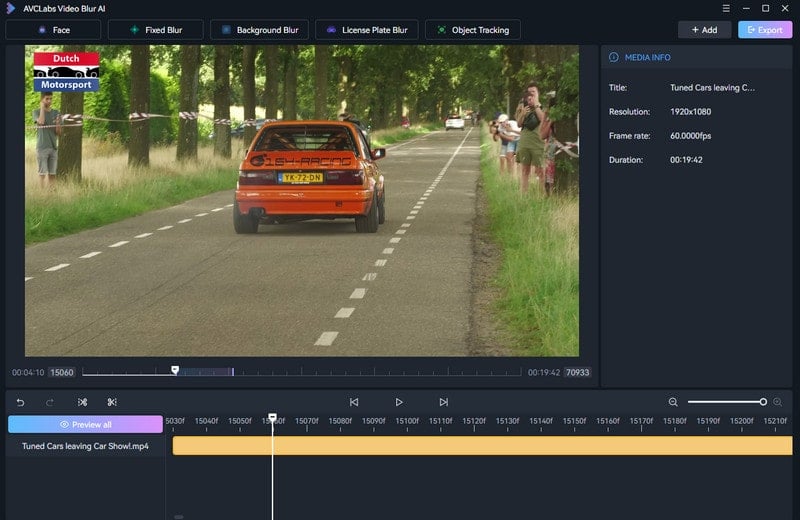
If you need to remove watermark from MP4 video without sacrificing an ounce of quality, AVCLabs Video Blur AI is the industry favorite video watermark removal software for 2026. Unlike simple blurring tools, it uses smart Object Tracking. Ordinary software just slaps a static blur over a spot; if the logo moves, the blur looks stupid. AVCLabs tracks the moving logo pixel-by-pixel and performs dynamic inpainting. Beyond watermarks, AVCLabs can also remove text, people, cars, and other objects from video. It is widely praised for privacy editing—like blurring faces, background, or license plates—making it a versatile suite for video cleanup.
Pros
- Exceptional moving object tracking (handles camera shake and logo rotation)
- Retains original 4K resolution with no noticeable quality loss
- Supports both Blur and Erase modes
- Performs especially well on moving watermarks and animated corner logos
- Simple workflow compared to traditional editors like Premiere Pro or After Effects
- Handles long-form videos more reliably than most online tools
- Local desktop processing avoids uploading sensitive videos to cloud servers
Cons
- Desktop only (no mobile or web version)
- The free trial adds a watermark to exports
- The interface, while functional, lacks some modern UI polish
- Extremely hardware-dependent (requires a dedicated GPU for maximum speed; low-end specs will suffer from long render times)
Our Testing Verdict
We threw a challenging test at AVCLabs: a 4-minute vlog clip with a moving sponsor logo (animated, bouncing slightly) over a brick wall background. The AI tracked it perfectly across all 5,760 frames without losing the anchor. We used the "Erase" mode, and the result was stunning—the bricks were reconstructed naturally with no flicker or smudging. Note that we ran this on a dedicated NVIDIA GPU; on integrated graphics, expect the rendering to take significantly longer. For serious creators who need video watermark removal software that actually works on moving logos, this is our top pick.
2. HitPaw Watermark Remover
- Platform: Windows, Mac.
- Pricing: Monthly Plan: $9.99 | Yearly Plan: $19.99 | Lifetime Plan: $29.99
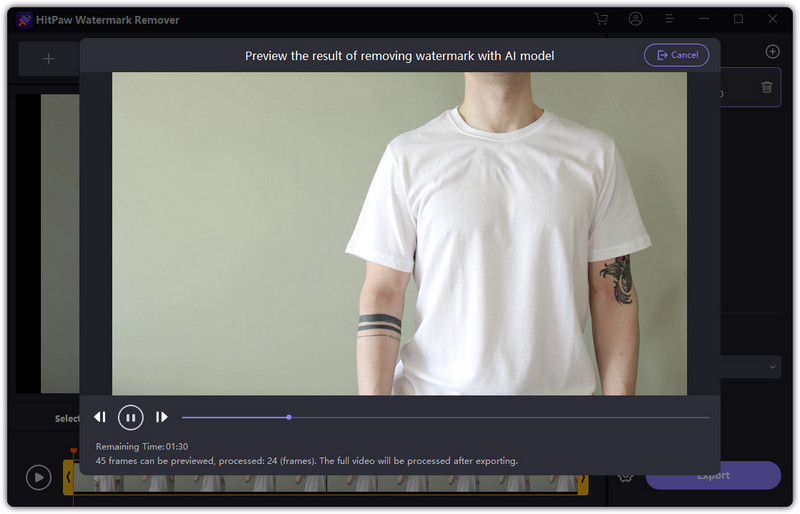
HitPaw Watermark Remover is often the top result on YouTube tutorials for a reason. It offers five specific AI models for different removal scenarios: "AI Model", "Smooth Filling", "Gaussian Blur", "Color Filling", and "Matte Filling". It also includes a dedicated "Remove Moving Watermark" setting for animated logos. One reviewer mentioned they were "absolutely blown away by the accuracy," especially for videos with moving watermarks. HitPaw is slightly cheaper than its rivals, and the user interface is arguably the cleanest on the market. However, it does not offer a free trial—not even a one-time free video export.
Pros
- Five distinct AI models let you match the removal technique to your video type
- Supports up to 8K resolution
- Real-time preview before export
- Very low learning curve for beginners
Cons
- Free trial only allows preview; you cannot export any video without paying
- The monthly subscription adds up quickly if you don't commit to a yearly plan
- Slower than AVCLabs on older hardware
- Some users report concerns about subscription renewal clarity on third-party forums
Our Testing Verdict
We tested HitPaw on a close-up of a shirt with a small embroidered logo using the "AI Model" mode. The AI reconstructed the fabric weave decently, though we noticed some slight flickering in the processed area. A 2-minute 4K clip took about 4 minutes on a mid-range laptop. The interface is clean and intuitive. The biggest catch? No free export at all—only preview. If you buy, choose the lifetime plan to skip subscription hassles.
3. iMyFone MarkGo
- Platform: Windows, Mac.
- Pricing: Free trial (limited); Premium subscription: 7.95/M, 12.99/Y, 29.99/Lifetime.
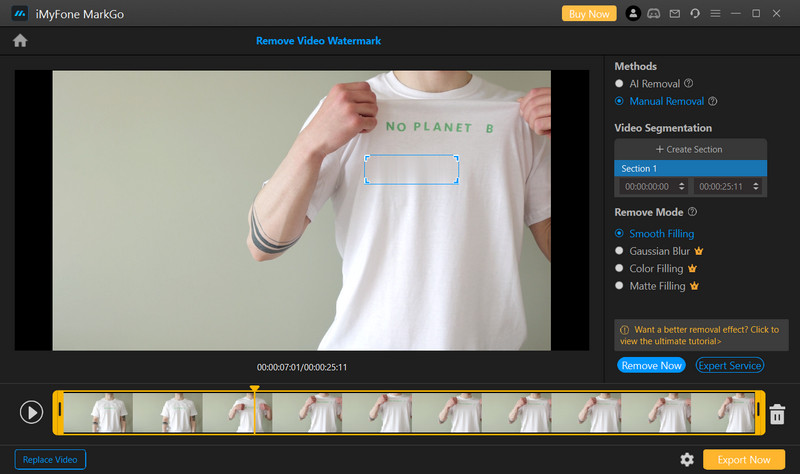
iMyFone MarkGo is a simple tool for removing static watermarks like corner logos, timestamps, and subtitles. Its drag-and-drop workflow and beginner-friendly interface make it easy to use. However, it struggles with moving watermarks—once the logo shifts across frames, smudging or ghosting appears. It can also erase subtitles and unwanted objects from videos and images, making it a decent lightweight option for casual creators.
Pros
- AI-powered precision removal with minimal quality loss
- Supports multiple formats including MP4, MOV, AVI, MKV, and more
- Batch processing for handling multiple videos simultaneously
- Drag-and-drop interface with low learning curve
- Versatile: remove objects, add watermarks, convert video formats
Cons
- Free trial offers limited features; full version requires premium subscription
- Processing speed depends on file size and complexity
- Advanced features locked behind paywall
- Output quality may vary with complex backgrounds or moving watermarks
Our Testing Verdict:
We tested MarkGo on a close-up shot of a T-shirt with a small embroidered logo. For static watermarks, it handled the job well—the logo was removed cleanly, and the fabric texture was mostly preserved with only minor softening around the edges. Processing the 30-second clip took about 2 minutes on a standard laptop, and the drag-and-drop interface was easy to use. However, when we switched to a clip with a moving logo (a bouncing channel bug), the tool completely failed to track it. The logo reappeared on most frames, and there was no automatic tracking feature to speak of. The free trial only lets you preview; no export without paying. Fine for static watermarks, but useless for anything that moves.
4.2 Quick Online Tools
Quick online video watermark removers are best suited for quick edits on small MP4 files without installing any software. Based on our testing, here are three easy-to-use tools.
4. Media.io Watermark Remover
- Platform: Web browser.
- Pricing: Free with watermark; Pro starts at $9.99/month.
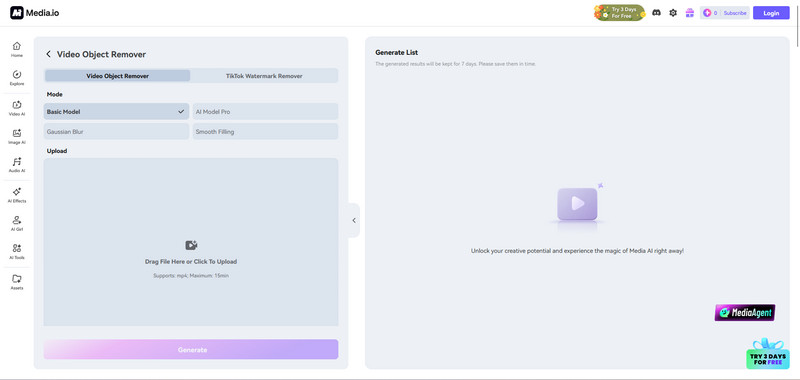
Media.io offers a polished interface and surprisingly good object removal for an online tool. It allows you to use a brush tool to highlight the logo, and the AI fills the gap. It works best on uniform backgrounds like skies or walls. Many casual users on YouTube tutorials praise it for being "shockingly accurate for a web tool."
Pros
- Clean, modern UI that guides you step-by-step
- Supports multiple formats including MOV and AVI
- Offers a brush tool for irregularly shaped watermarks
- Server-side processing saves your local CPU
Cons
- Free version leaves a watermark on your output video
- Upload and download speeds depend heavily on your internet connection
- Struggles with complex backgrounds like trees or crowds
- No desktop version for offline use
Our Testing Verdict
We tested this with a 45-second clip featuring a semi-transparent logo over a moving waterfall background. The upload took about 90 seconds, and the AI took another 40 seconds to process. The result was decent for a free online tool—the logo was mostly gone, but the area looked slightly "smudged" like a low-opacity eraser. The free watermark on the output was intrusive (placed dead center). For a quick test, it works. For anything serious, you will need the paid plan.
5. Dewatermark Watermark Remover
- Platform: Web browser.
- Pricing: Free for 5s Preview; Pro starts at $3/month with 1200 credits.
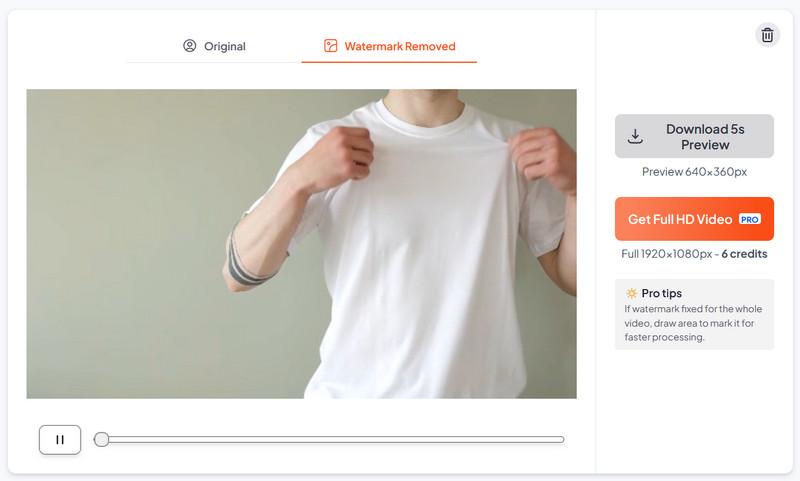
DeWatermark.ai is an AI-powered online watermark removal tool that removes watermarks from images, videos, and even PDFs. It uses CNN and GAN models to detect and reconstruct watermark areas, claiming to preserve original quality without blurring. The platform supports MP4 and MOV formats, offers a 5-second video preview before you pay, and provides a free tier with 5 daily credits. It works entirely in the browser—no software installation required.
Pros
- Web-based, works on any device with a browser
- Supports images, videos, and PDFs in one platform
- Free tier offers 5 credits per day for testing
- 5-second video preview before committing payment
- Credit-based pricing (pay only when you use it)
Cons
- Processing accuracy drops on complex or multi-colored logos
- Free tier only gives 5 credits daily, full video export costs 6 credits
- Requires internet connection; no offline version available
Our Testing Verdict
We uploaded a clip with a moving logo bouncing across the frame. DeWatermark.ai tracked it surprisingly well for an online tool—the logo was removed across most frames, with only a slight flicker visible in the processed area when playing back. Not perfect, but far better than most web-based tools that completely fail on motion. The catch? To export the full video, we needed 6 credits, but our free daily account only had 5. So you cannot export a single full video without buying credits. The free preview download at 640x360 also makes it hard to judge fine details. If you're willing to pay, DeWatermark.ai is one of the few online tools that can handle moving watermarks with decent results.
6. Apowersoft Online Watermark Remover
- Platform: Web & Windows/Mac Desktop.
- Pricing: Freemium; Premium from ~$19.95.
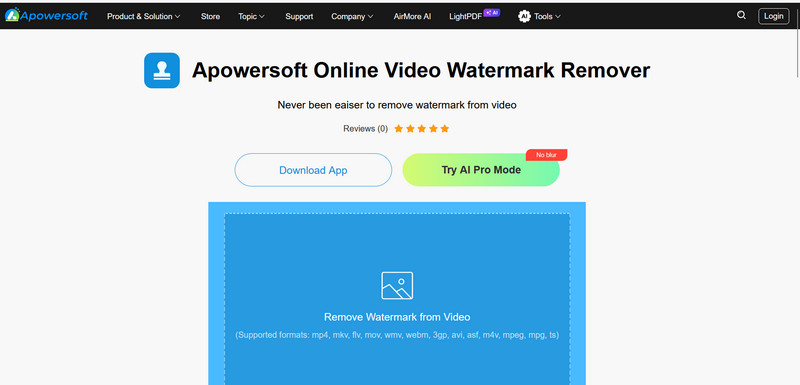
Apowersoft has been in the game for a while. Their online remover supports batch processing—even on the web—which is rare. You can select the watermark area using a rectangle or freehand tool. However, as one user noted in a recent review, "it may not provide good results when dealing with complicated backgrounds or fast-moving watermarks."
Pros
- Supports batch mode online (up to 5 files simultaneously)
- Flexible selection tools including lasso and rectangle
- Offers a desktop companion app for offline work
Cons
- Struggles with high-motion scenes
- The interface feels dated and cluttered with upgrade prompts
- Processing queues can get long during peak hours
Our Testing Verdict
We uploaded two MP4 files at once—a 1080p interview clip and a 720p screen recording. The batch feature worked smoothly, and both processed in about 3 minutes combined. However, on the interview clip (which had a moving lower-third logo), the removal was choppy. The logo disappeared but reappeared slightly misaligned on frame 89. For static logos, it's reliable. For anything that moves, look elsewhere.
4.3 Professional Editors
Best for: Studio work where quality is non-negotiable.
7. CapCut (Free Workaround)
- Platform: Windows, Mac, iOS, Android.
- Pricing: Free.
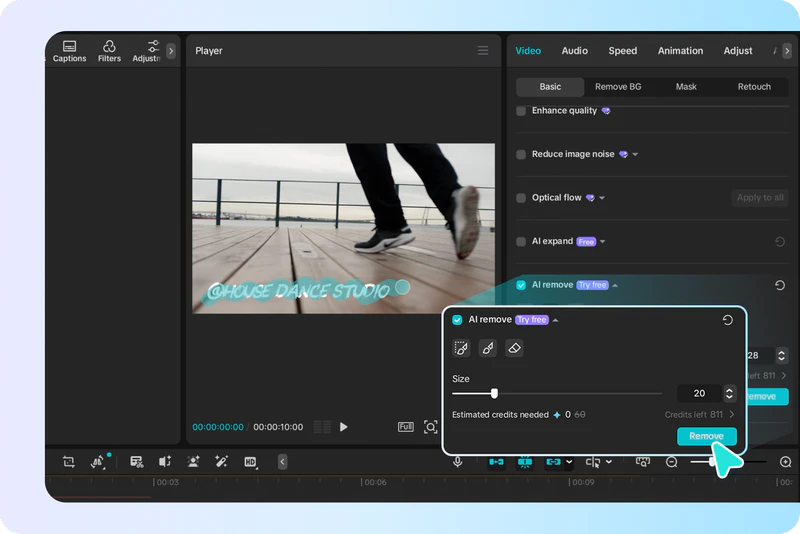
CapCut is the go-to free video editor for social media creators. While it doesn't have a dedicated "Watermark Remover" button, its "Remove Object" feature works surprisingly well for small, static logos. Because it is backed by ByteDance's AI, the inpainting is fast. The downside? It's a full editor, so you have to dig through menus to find the removal tool.
Pros
- Completely free with no watermarks on export
- Powerful AI inpainting engine
- Available on desktop and mobile
- Regular updates with new features
Cons
- No dedicated watermark removal tool (you have to find the "Remove Object" feature)
- Primarily mobile-first interface on desktop feels clunky
- Learning curve to locate the right settings
Our Testing Verdict
We tried CapCut's "Remove Object" on a static TikTok logo in the corner of a 30-second clip. After watching a quick YouTube tutorial to find the feature (it's hidden under "Filters" > "AI", oddly), the removal worked well. The background (a simple wall) reconstructed cleanly. However, when we tried a moving watermark, CapCut failed completely—it only removes static objects. For budget users with simple needs, this is a hidden gem. Just don't expect batch processing or motion tracking.
8. Adobe Premiere Pro
- Platform: Windows, Mac.
- Pricing: $20.99/mo (single app) or included in Creative Cloud All Apps.
Using the "Content-Aware Fill" feature (borrowed from After Effects), Premiere Pro can remove watermarks. You draw a mask, and the software analyzes surrounding frames to fill the space. It is incredibly powerful but requires rendering time and a subscription. Many Hollywood post-production houses use this for clean-up work.
Pros
- Pixel-perfect results with enough time
- Integrates with the full Adobe ecosystem
- Handles any resolution or codec
- Motion tracking is frame-accurate
Cons
- Expensive subscription ($20.99/month minimum)
- Complex workflow that requires understanding masking and tracking
- Slow rendering even on fast machines
Our Testing Verdict
We tested Content-Aware Fill on a difficult clip—a moving logo over a busy street scene with pedestrians. Premiere's tracking was accurate, and after 8 minutes of rendering, the result was excellent. However, the process required setting up a mask, linking it to a tracker, and then rendering the fill. For a professional editor already paying for Creative Cloud, this is a viable option. For anyone else, it's overkill.
9. Adobe After Effects
- Platform: Windows, Mac.
- Pricing: Included in Creative Cloud.
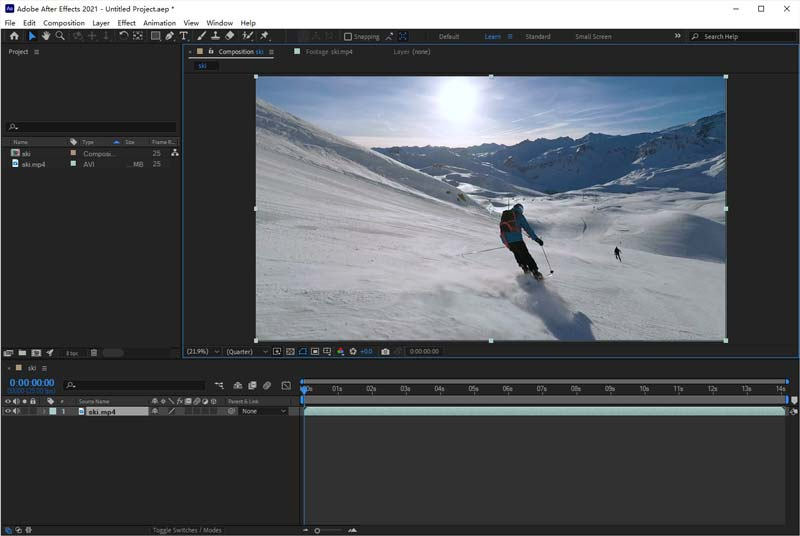
For moving watermarks on complex backgrounds, After Effects is the nuclear option. The tracking system is frame-accurate, and you can manually adjust keyframes down to the individual pixel. However, as Emma Johnson noted in a detailed comparison, "manually removing a logo took 14 hours" in AE compared to 20 minutes with AI tools. Use this only when everything else fails.
Pros
- Absolute creative control
- Can handle any impossible scenario (watermarks over faces, moving text, complex patterns)
- Industry standard for VFX
Cons
- Extremely slow workflow
- Steepest learning curve of any tool here
- Expensive subscription
- Overkill for 99% of watermark removal tasks
Our Testing Verdict
After Effects is like using a sledgehammer to hang a picture. Yes, it works. Yes, the result is perfect. But we spent 2 hours on a clip that AVCLabs handled in 90 seconds. Unless you are removing a watermark from a high-budget commercial or film project, avoid AE for this specific task.
10. DaVinci Resolve Studio
- Platform: Windows, Mac, Linux.
- Pricing: $295.
The paid Studio version leverages the DaVinci Neural Engine and advanced Magic Mask tools rather than the free version's manual workflow. It is faster and supports higher resolutions (up to 32K). For professionals already in the Blackmagic ecosystem, this is the logical choice. The neural engine in Studio is genuinely impressive, though still not as automated as dedicated AI tools.
Pros
- Faster than free version
- Neural engine AI tools for object removal
- Supports 32K resolution
- One-time payment (no subscription)
Cons
- $295 one-time fee is expensive for casual users
- Still requires more manual setup than AVCLabs or HitPaw
- Learning curve remains steep
Our Testing Verdict
We used DaVinci Studio's Neural Engine-powered Object Removal filter on a static logo, and it worked in about 15 seconds—much faster than the free version's manual clone tool. For moving logos, we still had to set up tracking manually. Compared to AVCLabs, which does it automatically, DaVinci Studio feels like a professional tool that happens to remove watermarks, rather than a dedicated watermark remover. Worth it for full-time editors, not for one-off tasks.
Summary Comparison of the 10 Best AI Watermark Removers
To help you see the bigger picture, here is a complete side-by-side breakdown of every software we tested in terms of pricing, platform availability, and category.
Step-by-Step Guide: How to Erase a Watermark from Video
Removing a watermark doesn't require a degree in video editing. With a dedicated desktop tool like AVCLabs Video Blur AI, the whole process takes less than a minute. Here is exactly how it works.
Editor's Choice
AVCLabs Video Blur AI
AI-powered video editor tool that automatically detects and blurs faces, license plates, and backgrounds, or completely removes unwanted objects including watermarks with one click.
- Smart object removal to erase unwanted elements from videos.
- AI-powered automatic detection for fast and easy blurring.
- Multiple blur effects and customizable stickers supported.
- Advanced face, background, and license plate blur modes.
- Maintains original video quality while applying blur effects.
Step 1: Import Your Video
Open AVCLabs and click the "Add Files" button or simply drag your MP4, MOV, or AVI file directly into the workspace. The software accepts most common formats and even handles 4K footage without complaining.
Step 2: Select the Watermark Area
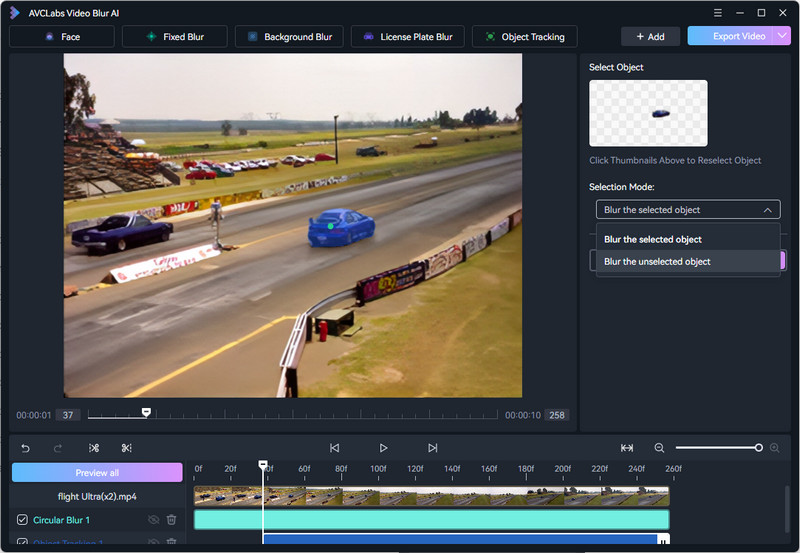
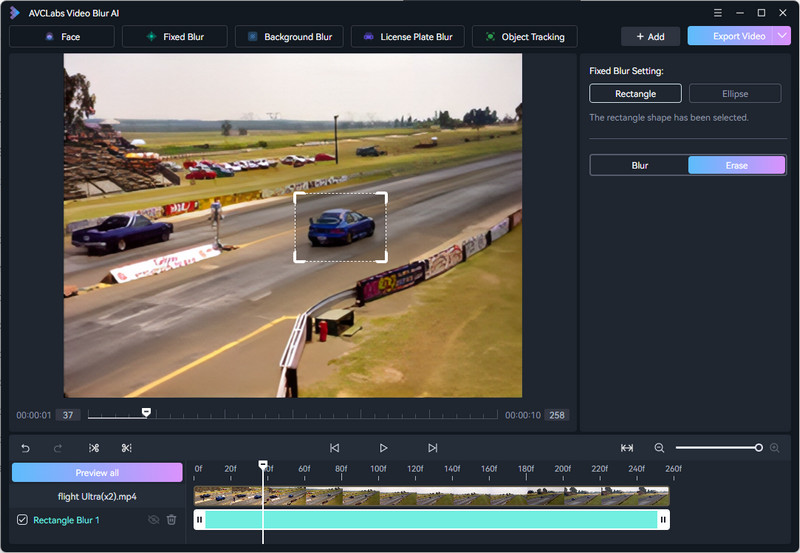
First, decide which panel to use—Fixed Blur if the watermark stays put, or Object Tracking if it moves. Then drag a bounding box around the logo. AVCLabs automatically detects the watermark's edges, so you don't need to be pixel-perfect. If the watermark is oddly shaped, switch to the brush tool. Just make sure you've switched "Blur" to "Erase" mode on the right—that tells the AI to remove the watermark, not just blur it.
Step 3: Let the AI Track Moving Watermarks
If your watermark stays in one corner, skip this step. But if the logo moves—a floating channel bug or bouncing sponsor tag—click "Object Tracking." The AI scans the timeline frame by frame and locks onto the watermark's movement. Once tracking finishes (a few seconds for a 2-minute clip), you can use the mouse to expand or subtract the selection area.
Step 4: Preview and Export
The program automatically shows a preview of the removal effect. Click the Eye icon to check individual tasks, or hit "Cancel Preview All" to exit. Satisfied? Click "Export" and choose your output format. If you regularly remove similar watermarks, click "Export Mask" to save your setup as a reusable template.
That is it. No frame-by-frame masking, no complex tracking keyframes, no watching hours of YouTube tutorials. AVCLabs Video Blur AI simplifies the entire watermark removal workflow with automated detection and one-click object tracking, cutting what used to take hours down to seconds.
When You Should NOT Remove Watermarks
We need to be responsible here. Just because you can remove a watermark doesn't mean you should.
- Copyright Infringement: Do not remove watermarks from stock footage you haven't paid for (like Shutterstock or Getty Images). That is a legal liability.
- Platform Terms: Many social media platforms forbid removing identifying credits from original creators.
- Illegal Distribution: Never use these tools to strip DRM or ownership marks from paid courses or exclusive content.
Google favors balanced content. Using AI to clean up your own screen recordings or personal vlogs is fine. Using it to steal content is not.
FAQs about AI Video Watermark Remover
What is a Video Watermark Remover?
A video watermark remover is software that removes logos, text, or graphics overlaid on a video. Traditional methods involved cropping the video (which loses visible content) or manually blurring the logo (which looks unprofessional). Modern AI video watermark removers automatically detect the watermark, remove it, and reconstruct the background behind it. The result is a clean video that looks like the watermark was never there.
Can AI remove watermarks without blurring the background?
Yes, absolutely. This is the main difference between old-school tools and modern AI software. Basic editors simply smudge the watermark area, leaving a visible blurry rectangle. AI-powered tools like AVCLabs Video Blur AI use inpainting technology instead. The AI analyzes the pixels surrounding the watermark and generates new, realistic content that matches the background. So if a logo sits over a brick wall, the AI reconstructs the brick pattern. If it sits over moving water, the AI recreates the water texture. No blur, no smudge, just a clean result.
Can AI remove watermarks from high-resolution 4K videos?
Yes, but only if the tool specifically supports it. Most online tools downscale 4K to 1080p before processing, which defeats the purpose. Desktop AI tools like AVCLabs Video Blur AI and HitPaw maintain native 4K resolution throughout the entire workflow. Always check the tool's specs before uploading a 4K file.
Can AI remove watermarks from moving videos?
Yes. Look for tools with "Object Tracking" or "Motion Tracking" in their feature list. AVCLabs, HitPaw, and Adobe Premiere Pro all support this. Basic online tools and free editors like CapCut generally cannot track moving logos.
Is there a completely free AI video watermark remover?
CapCut offers a free "Remove Object" feature for static logos, and DaVinci Resolve is free but manual. Most "free" online tools will leave their own watermark on your output or limit you to 30-second clips. True free AI removal without limitations is rare.
Does removing a watermark reduce video quality?
It depends on the tool. Basic online tools usually compress the file (reducing quality and introducing artifacts). High-end desktop software like AVCLabs and HitPaw maintain the original resolution, bitrate, and frame rate. Always preview before exporting to check for quality loss.
Can I remove watermarks from TikTok or YouTube videos?
Technically, yes. Most tools can erase corner logos. However, always respect the original creator's rights and the platform's terms of service. Removing a watermark from someone else's content and re-uploading it as your own is copyright infringement.
Conclusion
Video watermarks don't have to ruin your creative projects. In 2026, the gap between a quick online fix and professional-grade AI reconstruction has widened significantly. For simple, static logos on short clips, a browser tool or even CapCut might suffice. But if you value your time, work with moving logos, or need to process videos in batches, investing in dedicated AI video watermark remover desktop software is the smart move.
Clean up your footage, protect your viewers' eyes from distracting logos, and keep your content looking professional.
Try AVCLabs Video Blur AI today for effortless watermark removal and high-quality video processing.
Emma Dan
AI Product Content Strategist
She is a video post-production specialist and AI tool reviewer who has helped thousands of creators streamline their editing workflows through practical, no-fluff tutorials. Her work focuses on comparing AI video tools and breaking down real editing workflows for creators.











 Eve Williams
 May 13, 2026