MOV vs MP4: Key Differences Explained in 2026
 PostedBy: Eve Williams
- Category: Video Enhancer Tips
- Updated On: June 03, 2026
If you have ever spent hours editing a MOV video, and found that it uploaded poorly or looked blurry in the end, the issue probably was not with your editing skills. It was the video format.
Most people tend to overlook the difference in the MOV vs MP4 debate. The two formats behave differently when you upload your video, plan to share or edit it using different tools. In this guide, we will walk you through what really sets MOV vs MP4 apart. You'll also get to know how to decide which one you should choose for your workflow, and how to convert between them without losing quality.
Read More: 5 Online Video Quality Enhancers That Worth a Try | Top 3 8K Video Players for PC in 2026 [Free & Paid]
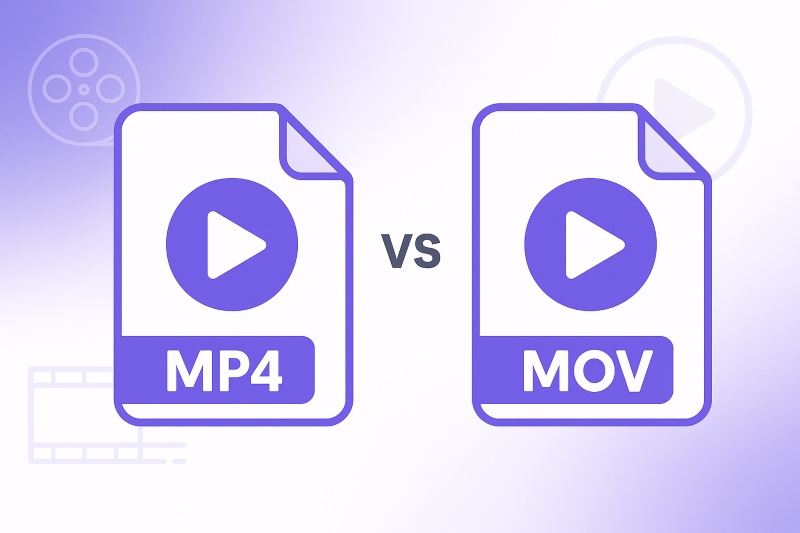
Part 1: .MP4 vs .MOV: What is the Difference?
MP4 and MOV may seem similar if you're a noob in video editing. But there is no need to worry, we have prepared a cheat sheet for you to quickly decide which one to use. If you’re curious, you will also find more technical details later in this blog.
Quick Answer: MP4 vs MOV – Which Format Should You Use?
- Want video to work on all kinds of device or platform
- Like smaller file sizes of file
- Are a content creator in social platforms like YouTube, Instagram
- Need the best possible quality
- Are working in Apple ecosystem like macOS, iOS, Final Cut Pro
- Have complex video projects with multiple audio or video tracks
Still unsure?
If you don't need to edit videos like a professional or you are not using any Apple tools, then MP4 is your choice.
What Are MP4 and MOV Formats?
A video format like MP4 or MOV decides how video, audio, subtitles, and other data are structured and stored in a file. The result will be reflected in the file size and quality.
Try thinking of them as different kinds of “boxes” holding similar content but in different ways. One box can be bigger than the other. So this is why they work differently, supporting different codecs, as well as playing better on some devices than others. The differences can have impact on playback and editing.
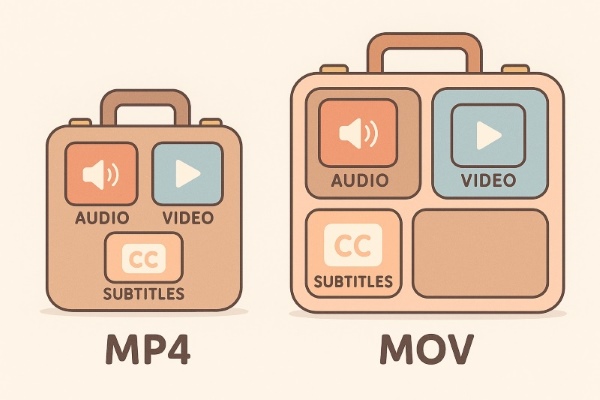
- MP4 is the most widely used standard maintained by ISO (International Organization for standardization). It uses H.264 or H.265 compression, two video compression standards that keep file sizes smaller while maintaining good video quality. MP4 is highly compatible across platforms like Windows, Android, YouTube, and most web browsers. It is easy to upload, stream, and share.
- MOV is an extension belonging to the QuickTime File Format (QTFF) like
.QT, . Apple introduced this format in 1998, along with a proprietary compression algorithm specifically for MOV files. A MOV file is a multimedia container composed of multiple tracks, each storing a specific type of data such as audio, video, timecodes, or text. This structure makes MOV files particularly suitable for storing movies. This format is also easy to edit, as changes can be made without rewriting the entire file.
Key Differences Between MP4 and MOV
| Feature | MP4 | MOV |
|---|---|---|
| Origin | ISO standard, widely used | Created by Apple, optimized for QuickTime |
| Compression | H.264 / H.265 | Often less compressed (e.g., Apple ProRes) |
| Compatibility | Almost all devices, platforms, and browsers | Best on macOS, iOS, and Apple software |
| File Size | Smaller, more compressed (Better for sharing and streaming) | Larger, less compressed |
| Video Quality | Good quality, suitable for most uses | Higher quality, better for professional editing |
| Editing Support | Basic editing features, less metadata support | Rich metadata, multiple audio/video tracks, ideal for editing |
| Streaming | Excellent, optimized for web streaming | Less optimized for streaming |
| Pros | Highly compatible, small file size, great for sharing | High-quality video, professional editing, rich features |
| Cons | Limited advanced features, slight quality loss due to compression | Large files, limited compatibility outside Apple ecosystem |
1. MP4 vs MOV: Compatibility
The greatest part about MP4 is that it works on almost every device and app (phones, laptops, browsers, TVs, even cloud platforms) without any extra hassle.
MOV works perfectly in the Apple ecosystem, but it can be a bit picky on other devices. There are users report that it won’t play on certain Windows apps. Also, it can be tricky if you drop it into a presentation. These issues are not huge but can slow you down or get frustrating when sharing videos across teams or different systems.
2. MP4 vs MOV: File Size, Compression and Video Quality
If you want the best quality, the answer is MOV.
MOV files keep more detail in every frame, using less compression and supports professional codecs. This is great when you need high image quality. You will get better color grading and precise. The downside is they’re huge. If you have a MOV in your computer, you can check and find that only a short clip takes up hundreds of megabytes. This often leads to longer transfers, slower editing, and heavier demands on storage.
By contrast, MP4 is easier for sharing scenarios. It compresses video more aggressively, cutting out details most people won’t notice, making the files stay much smaller without loosing too much quality. When you’re uploading online, storing lots of videos, or working with slower internet connections, it's wise to go with MP4.
3. MP4 vs MOV: Editing Flexibility
MOV is designed for editing. It can handle multiple audio tracks, embedded timecodes, and even special channels for effects. You don’t always notice these things if you just watch the videos, but this will really help when you’re editing a video project.
MP4 is more about playing everywhere easily. It simplifies things and compress files. MP4 is easy to watch and share, but when you try to edit it, the experience won't be as smooth as using MOV: small problems can pop up, like audio getting out of sync or frames not being perfectly accurate.
Part 2: How to Convert MP4 to MOV (and Vice Versa)
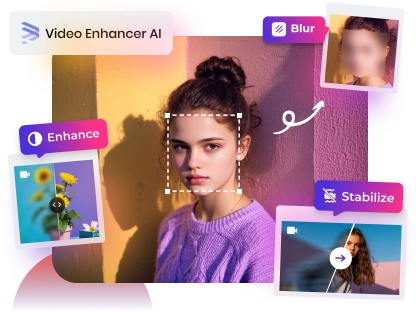
Converting between MP4 and MOV is often necessary , whether you need a smaller file for sharing (MP4) or a higher-quality version for editing (MOV). This conversion is simple thanks to modern video converters, such as AVCLabs Video Enhancer AI.
Note: When converting from MP4 to MOV, remember that some quality lost during MP4 compression may not be fully restored by simply switching formats. If you are trying to restore the MOV quality, starting with the best possible version, and using a smart converter with AI enhancement can really make a difference.
If you're curious how much quality you can recover or want to try a smarter conversion workflow, AVCLabs Video Enhancer AI offers an free trial. Download and upload your video to let the AI take care of the details.
Here's a step-by-step guide to help you get started.
Key Features of AVCLabs Video Enhancer AI
- Turn low-res boomerang video into stunning 4K quality.
- Easily switch video formats without losing quality or details.
- Customize encoding settings like codec, bitrate, and resolution for each format
- Support batch conversion across various popular video formats.
- Preserve, remove audio tracks during format conversions.

How to Convert MP4 to MOV (and Vice Versa) with AVCLabs Video Enhancer AI
Step 1 Download and Install AVCLabs Video Enhancer AI
Download and install AVCLabs Video Enhancer AI, then launch it. You will see a menu on the left side. Select Video Enhancer AI.
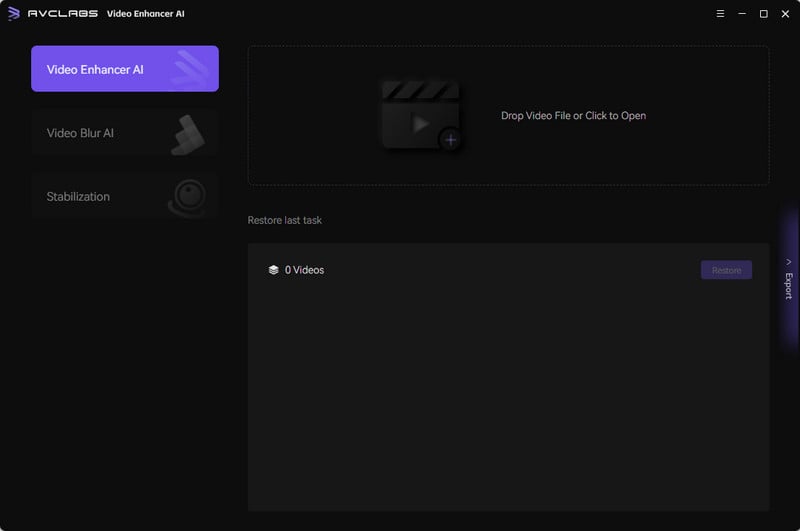
Step 2 Upload Your MP4 or MOV Video Files
To import your MP4 or MOV videos, click Add Files. If you want to process more than one video at the same time, you can also add multiple files at once.

Step 3 Choose the Output Video Format
Go to Output Settings and select output format (MP4 or MOV)

Step 4 Adjust Additional Output Settings
If you have advanced requirements, the program also allow you to change the encoder, bitrate, and audio settings to achieve the best result you want.

Step 5 Start the Conversion
Click Export to begin converting the current video, or choose Export All to convert all uploaded files.

Bonus Upscale and Enhance Your Video Before Conversion
If your video lost clarity or you want to play it on a larger screen, you can select a higher resolution at the top of the interface and turn on AI Enhancement to improve clarity up tp 8k before conversion.

FAQ About MOV vs MP4
Is MOV better for uploading to YouTube?
No, MP4 is generally the better choice for YouTube and other video-sharing platforms.
It's more compatible, faster to upload, and keeps good quality with smaller file sizes. MOV may offer slightly better quality, but its large size and limited platform support make it less practical for online sharing.
Can I convert MOV to MP4 without losing quality?
Yes, you can use high-quality video converters like AVCLabs Video Enhancer AI to convert MOV to MP4 while preserving as much detail as possible.
Why is my MOV file not playing on Windows?
Some Windows players may in lack of the necessary codecs for MOV playback. Try using professional player like VLC. If you run into this issue frequently, converting them to MP4 can help streamline your workflow and reduce errors across devices.
Conclusion
Choosing between MP4 and MOV depends on what you need. If you want to share, stream, and keep file sizes small, MP4 is great. If your plan is to edit video project seriously especially in Apple ecosystem, then we recommend MOV.
If you want both optimal compatibility and top video quality, try converting a test video with AVCLabs Video Enhancer AI. It can handle different formats (including MOV and MP4), codecs, bitrates, and resolutions. Just upload your video, and let the built-in AI takes care of the rest.

AnySecura Tranparent Encryption Software
AnySecura Transparent Encryption automatically encrypts documents in the background, ensuring that only authorized users and applications can access them. Employees work as usual, while you gain full control over data usage and prevent leaks both inside and outside the organization.
Learn More >